
How to Connect Power BI to Claude AI Using MCP Server
Writing DAX formulas manually is one of the most time consuming parts of building a Power BI dashboard. What if Claude could write them directly inside your Power BI file not just suggest them for you to copy-paste, but actually create them for you? That is exactly what MCP makes possible. Here is the complete setup guide.
What is MCP and Why Does It Matter?
MCP stands for Model Context Protocol. It is a connection layer that allows Claude to talk directly to Power BI. Without MCP, Claude is just a text assistant sitting in a separate window. You ask it for a DAX formula, it gives you one, and then you manually switch to Power BI, find the right place, and paste it in. If there is a syntax error, you go back and forth. It works but it is slow.
Think of it this way
Claude is a very smart assistant in one room. Power BI is in another room. MCP is the phone line between them. Once connected, Claude can call Power BI and say "Create a measure called Total Revenue" and it happens instantly inside your file. Without MCP, you are the middleman copy from Claude, switch to Power BI, paste, repeat.
The Power BI MCP server was built by Microsoft themselves. It is their official tool, available on their GitHub page, and it is free. It is currently in preview stage, meaning it works but Microsoft is still adding to it.
What Claude Can and Cannot Do Through MCP
This is the most important thing to understand before you start. MCP gives Claude access to your Power BI data model not your report canvas. The split is clean: Claude handles the brain work, you handle the design work.
| Claude Can Do Via MCP | Time Saved |
| Read your entire data model all tables, columns, data types | No need to click through each table manually |
| Create DAX measures by just asking in plain English | No need to remember DAX syntax |
| Create multiple measures at once in bulk | 45 measures in 2 minutes instead of 45 minutes |
| Create relationships between tables | No need to drag lines in Model View |
| Create calculated tables like a Date Table | No need to type long DAX formulas |
| Create calculated columns | Quick row-level calculations |
| Run DAX queries and show results | Test formulas instantly |
| Find and fix errors in your DAX | Instant debugging |
| Add descriptions to all measures in bulk | Documentation done in seconds |
| Still Manual Claude Cannot Do This | Why |
| Import data (Get Data → Excel) | MCP cannot access your file system |
| Power Query transformations | MCP does not connect to the Power Query engine |
| Create visual charts (bar, line, pie, etc.) | MCP cannot modify report pages |
| Format visuals colours, fonts, titles | MCP cannot access the visual layer |
| Add slicers, buttons, bookmarks | MCP cannot modify report layout |
| Publish the report | Requires your Microsoft account login |
What You Need Before Starting
Power BI Desktop and Claude Desktop you already have. The only new thing to install is VS Code with one extension.
- Power BI Desktop: If you have been building dashboards already, this is on your machine. No action needed.
- Claude Desktop App: The desktop version, not the browser. If you have only been using Claude in your browser, download the app from claude.ai/download before continuing.
- Node.js: MCP servers run on Node.js, so it needs to be installed on your system. Download it from nodejs.org and install the LTS version. Once installed, you will also have npx available which is used to run the MCP server.
- VS Code: The one new install this setup requires. Download it from code.visualstudio.com. Is only used here to host the MCP server extension.
Why VS Code?
VS Code is only needed here as a delivery vehicle. The Power BI MCP server is packaged inside a VS Code extension. Once you install the extension, the MCP server file sits on your computer and Claude Desktop uses it.
The Step-by-Step Setup Process
Step 1 : Install VS Code and Verify Node.js
Before installing VS Code, quickly check that Node.js is on your machine. Open Command Prompt (search for cmd in the Start Menu) and type:
node --version
If you see a version number like v18.x.x or higher, you are good. If you get an error saying node is not recognised, download and install Node.js from nodejs.org pick the LTS version. Restart your computer after installing, then continue.
Now install VS Code:
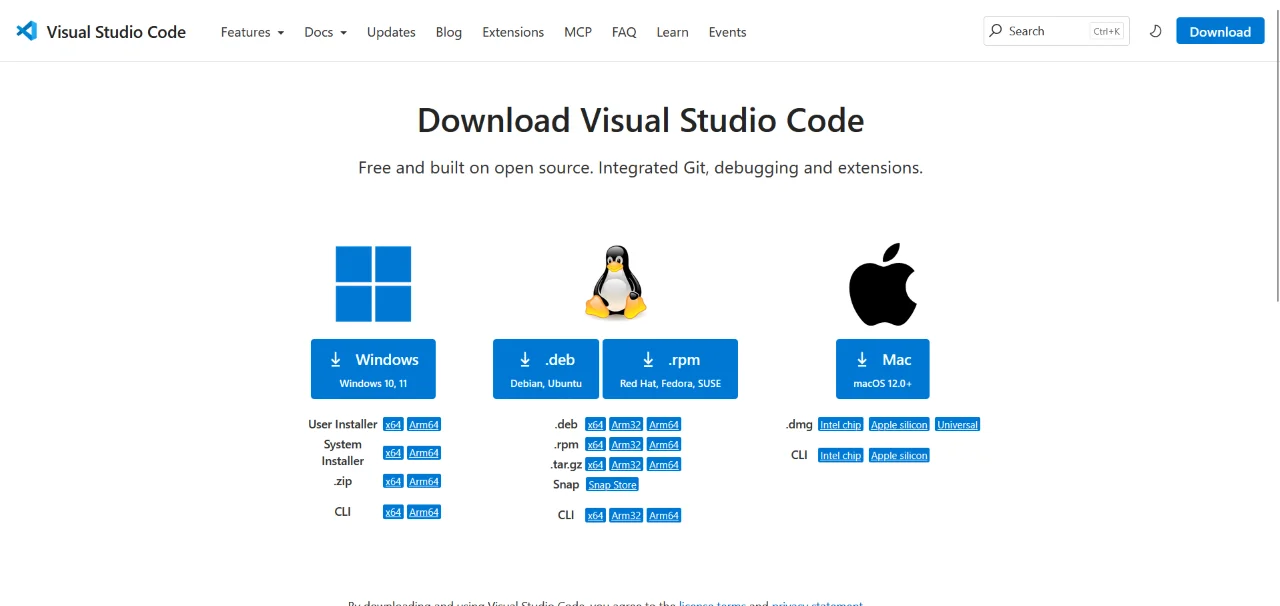
- Go to code.visualstudio.com/download
- Click the big blue Windows button. A file downloads.
- Double-click the downloaded file and click Next → Next → Next → Install → Finish
- VS Code is now installed. Open it once to confirm it works, then you can minimise it.
Step 2 : Install the Power BI MCP Extension
- Open VS Code
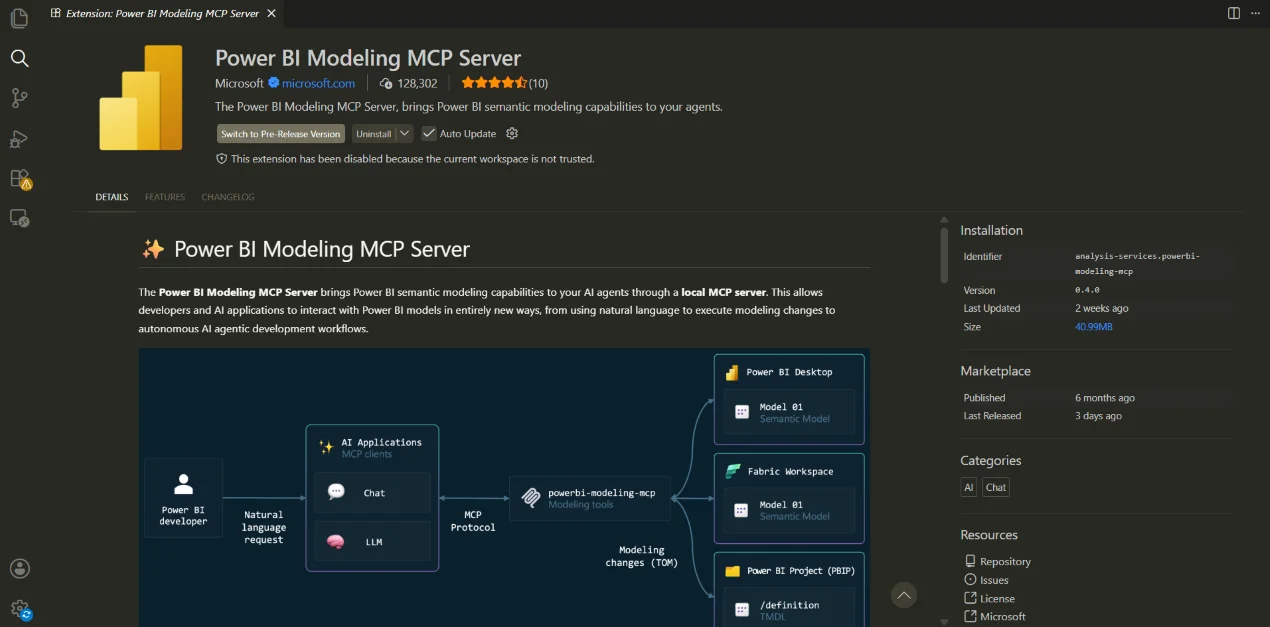
- Press Ctrl + Shift + X the Extensions panel opens on the left
- In the search box at the top, type: Power BI Modeling MCP
- Click the blue Install button
- Wait about 30 seconds. You will see a small Installed badge appear.
- You can minimise VS Code now. You are done with it for the installation.
Step 3 : Find the MCP Server Path
The extension installed a small program on your computer. You need to find its exact location to tell Claude Desktop where it is.
- In VS Code, press Ctrl + ` (the backtick key above the Tab key). A terminal panel opens at the bottom.
- Run this in the VS Code terminal and press Enter:
dir "$env:USERPROFILE\.vscode\extensions\analysis-services*"
- The terminal will show a folder name. It will look something like:
analysis-services.powerbi-modeling-mcp-0.4.0-win32-x64
- Note down this folder name. Your full MCP server path will be:
C:\Users\YOUR_USERNAME\.vscode\extensions\THE_FOLDER_NAME\server\powerbi-modeling-mcp.exe
How to find your Windows username
Open File Explorer (Windows + E). Look at the address bar it shows C:\Users\YourName. That YourName part is your Windows username. Replace YOUR_USERNAME in the path above with that exact name.
Step 4 : Configure Claude Desktop
- Open the Claude Desktop app
- Click the Settings icon (gear icon, bottom-left)
- Click the Developer tab on the left side
- Click the Edit Config button a folder opens containing a file called claude_desktop_config.json
- Right-click that file → Open with → Vs Code
- Delete everything currently in the file
- Paste the following JSON.
{
"mcpServers": {
"powerbi-modeling-mcp": {
"command": "C:\\Users\\YOUR_USERNAME\\.vscode\\extensions\\analysis-services.powerbi-modeling-mcp-0.4.0-win32-x64\\server\\powerbi-modeling-mcp.exe",
"args": ["--start"],
"type": "stdio"
}
}
}
Save the file (Ctrl + S) and close Vs Code
Step 5 : Restart Claude Desktop Properly
This is where most people get stuck. Simply closing the Claude window is NOT enough Claude keeps running in the background even when the window is closed.
Method A System Tray (Recommended)
- Look at the bottom-right of your screen near the clock for the Claude icon in the system tray
- Right-click the Claude icon → click Quit or Exit
- Claude Desktop is now fully closed
- Open Claude Desktop fresh from the Start Menu
Method B Task Manager (If you cannot find the system tray icon)
- Press Ctrl + Shift + Esc to open Task Manager
- Find Claude in the list of processes
- Right-click it → End task
- If there are multiple Claude entries, end ALL of them
- Now open Claude Desktop fresh from the Start Menu
Step 6 : Verify the Connection
Look at the Claude Desktop chat input area the box where you type messages. You should see a small hammer icon or tools icon near the input box.
The hammer or tools icon means MCP servers are connected and ready. If you do not see any icon, the setup did not work correctly check the troubleshooting section below before continuing.
Power BI must be open first
Before you type anything in Claude, open Power BI Desktop and load the .pbix file you want Claude to work on. Claude connects to a running Power BI Desktop instance. If Power BI is not open or no file is loaded, Claude will say it cannot find anything.
Once Power BI is open with your file loaded, type this in Claude Desktop:
Connect to my Power BI Desktop model
Claude will search for running Power BI instances on your computer and connect. It will respond with something like: Connected to [your file name]. Found X tables.
Then try these test commands to confirm everything is working:
Show me all tables in my model with their column names
How many rows does each table have?
Are there any existing relationships in my model?
Are there any existing measures?
If all four commands return results, your setup is working perfectly. In Power BI, getting this same information would require clicking through Model View, Table View, and multiple menus. With Claude connected through MCP, one question gives you the full picture in seconds.
Troubleshooting Common Problems
- MCP server fails to start node is not recognised : Node.js is not installed or not in your system PATH. Download the LTS version from nodejs.org, install it, and restart your computer. After restarting, open Command Prompt and run node --version to confirm it is working before trying the MCP setup again.
- Claude says server disconnected : Power BI Desktop must be open with a .pbix file loaded before you ask Claude to connect. Open your file in Power BI first, then ask Claude to connect. Claude connects to a running Power BI instance if Power BI is closed, there is nothing to connect to.
- Cannot find path error : The folder name in the path is wrong. Go back to VS Code terminal and re-run the dir command to get the exact folder name as it appears on your computer. The version number in the folder name (like 0.4.0) must match exactly what is installed on your machine.
Safety Tips Before You Start Using It
- Save your .pbix file before asking Claude to make changes : If something goes wrong, you have a backup to fall back to. This is the single most important habit to build.
- Verify in Power BI after Claude makes changes : Switch to Model View or Table View to confirm changes were applied correctly. Claude will tell you what it did but always check.
- Do not let Claude modify a production report : Always work on a copy of the file when experimenting with MCP for the first time.
- Start with read-only commands first : Run "Show me tables" and "List measures" before any "Create" commands to confirm the connection is stable before making changes.