How to Connect NSAW to Claude AI Using MCP Server
Querying NetSuite Analytics Warehouse (NSAW) usually means logging into the OAC console, navigating to subject areas, building analyses, and exporting results. What if you could just ask Claude in plain English and get the answer instantly, pulled live from your OAC instance? That is exactly what the NSAW AI Connector makes possible. Here is the complete setup guide.
What is NSAW and Its Two Key Components?
Before getting into the setup, it helps to understand what NSAW actually is and how it is structured.
What is NSAW?
NSAW stands for NetSuite Analytics Warehouse. It is Oracle's cloud-based analytics platform built specifically on top of NetSuite ERP data. It brings together your financial, operational, and business data from NetSuite into a centralised analytics environment where you can build reports, dashboards, and run queries all without writing raw SQL or touching the NetSuite database directly.
NSAW runs on top of Oracle Analytics Cloud (OAC), which is Oracle's general-purpose cloud analytics service and Autonomous Data Warehouse (ADW). When people refer to OAC or NSAW in the context of this connector, they mean the same thing the Oracle Analytics Cloud instance that powers your NetSuite reporting environment.
Simple way to think about it
NetSuite is your ERP where transactions, invoices, purchase orders, and financial records live. NSAW is the analytics layer on top. The MCP connector gives Claude direct access to that analytics layer, so you can ask questions about your NetSuite business data in plain English.
| Component | What It Does |
|---|---|
| Component 1: Oracle Analytics Cloud (OAC) - The Query Engine | This is the front-end analytics layer. It is where subject areas, datasets, dashboards, and reports live. OAC uses a query language called Logical SQL to fetch data from the underlying warehouse. When you ask Claude a question, it uses the MCP connector to run Logical SQL queries through OAC and return live results directly in your chat. |
| Component 2: Autonomous Data Warehouse (ADW) - The Storage Layer | This is the back-end storage where all your NetSuite data actually lives. ADW is Oracle's managed cloud database that stores the pre-built data models, fact tables, and dimension tables that NSAW uses. You do not query ADW directly - OAC sits in front of it and handles all data access through its semantic layer. |
| How They Work Together | ADW stores the raw structured data. OAC provides the semantic layer on top of it. Claude connects to OAC via MCP, asks it questions in Logical SQL, OAC fetches data from ADW, and the results come back to Claude in plain English. |
What is MCP and Why Does It Matter?
MCP stands for Model Context Protocol. It is a connection layer that allows Claude to talk directly to your Oracle Analytics Cloud instance. Without MCP, Claude is just a text assistant sitting in a separate window. You would need to manually log into OAC, run a report, export a CSV, paste the results into Claude, and then ask your question extremely slow for regular business use.
Think of it this way
Claude is a very smart analyst in one room. Your OAC instance is in another room. MCP is the direct phone line between them. Once connected, Claude can query your live data and reply in plain English. Without MCP, you are the middleman every single time.
The NSAW AI Connector is a small Node.js bridge built for this purpose. It is downloaded directly from inside your OAC Console Oracle provides it as part of the platform. It runs locally on your machine, is free to use, and the entire setup takes less than 10 minutes.
What Claude Can and Cannot Do Through MCP
| Claude Can Do Via MCP | What It Means For You |
|---|---|
| Browse and search all subject areas and datasets in your OAC instance | Instant overview of everything available to query |
| Pull column-level metadata for any subject area or dataset | Claude knows exactly what fields are available before writing any query |
| Run Logical SQL queries against live OAC data | Real results from your actual data - not sample or cached data |
| Answer plain-English questions about your NetSuite business data | No SQL knowledge needed - just ask naturally |
| Fetch top N records, totals, averages, date ranges | Instant aggregations without building OAC analyses manually |
| Compare data across time periods | Compare revenue this month vs last month directly |
| Spot trends and explain anomalies in query results | Claude reads the numbers and gives you business-level insights |
| Claude Cannot Do This Via MCP | Why |
|---|---|
| Build or modify OAC dashboards and reports | MCP is a query tool - not a dashboard builder |
| Create or edit subject areas in OAC | Requires OAC admin access, not available via MCP |
| Write back to NetSuite ERP records | OAC is read-only analytics - it does not write to source systems |
| Access data outside of OAC subject areas | MCP works through OAC's semantic layer only |
What You Need Before Starting
- Claude Desktop App : The desktop version, not the browser. Download from claude.ai/download.
- Oracle Analytics Cloud Instance : Access to your OAC or NSAW environment with the URL handy.
- Node.js 18 or later : Download the LTS version from nodejs.org. Earlier versions will not work.
- Oracle Analytics Login : The same credentials you use for the OAC web console.
- Local Admin Rights : You will edit a config file and extract a zip to a folder on your machine.
Node.js brings npx and npm automatically. When you install Node.js, npm and npx are installed alongside it no separate steps needed.
How to Connect NSAW to Claude AI. Step by Step Process
Step 1 : Download the OAC MCP Connector from Inside OAC
You do not install this from npm or GitHub. Oracle provides the connector directly inside your OAC console. Here is how to find it:
- Open your browser and go to your Oracle Analytics Cloud URL
- Log in with your Oracle Analytics credentials
- Click your Profile icon in the top-right corner of the screen
- In the dropdown menu, scroll to the bottom you will see MCP Server
- Click MCP Server this opens the MCP download page
- Click the Download button you will receive a zip file named oac-mcp-connect-1.0.0-[timestamp].zip
- From this same page, copy your OAC URL you will need it in Step 3

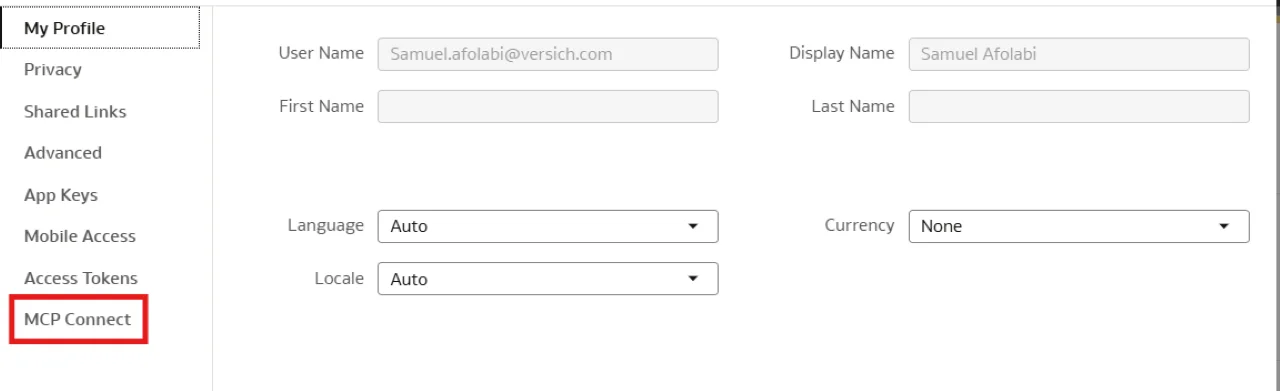
Keep the OAC tab open after downloading
The MCP Server page shows your exact instance URL. Keep this tab open you will need to paste this URL into the Claude config file in Step 3.
Step 2: Extract the Zip to a Permanent Folder
Do not leave the zip in your Downloads folder. Extract it to a stable location you will not accidentally delete.
After extraction, the folder should contain these files:
oac-mcp-connect.js- entry point (reference this in config)lib\- supporting library filesoac_mcp_connect_config-template.jsonREADME.md
Note the full path to oac-mcp-connect.js. Hold Shift and right-click on oac-mcp-connect.js in File Explorer, then click Copy as path to get the exact path ready to paste.
Step 3 : Configure Claude Desktop
Open Claude Desktop, go to Settings → Developer → Edit Config. The config file will open directly.
Good news you do not need to write this JSON yourself. The exact JSON config snippet is already available on the same OAC MCP Server page where you downloaded the zip in Step 1. Go back to that page the ready-to-paste JSON with your actual instance URL already filled in is shown there. Just copy it directly and paste it into your Claude config file.
The JSON on the OAC MCP Server page looks like this:
{
  "mcpServers": {
    "oac-mcp-connect": {
      "command": "node",
      "args": [
        "\\path\\oac-mcp-connect\\oac-mcp-connect.js",
        "https://[your-instance].analytics.[region].ocp.oraclecloud.com"
      ]
    }
  }
}
You must update the file path before saving
The JSON shows a placeholder path like \\path\oac-mcp-connect replace it with the actual path where you extracted the zip in Step 2. Example: C:\\Users\\[your-username]\\OneDrive\\Documents\\oac-mcp-connect\\oac-mcp-connect.js. The OAC instance URL is already filled in correctly do not change that part.
Save the file Ctrl + S on Windows, Cmd + S on Mac.
Step 4 : Restart Claude Desktop and Authenticate with Oracle
When Claude starts with the OAC connector for the first time, it automatically opens your browser to complete Oracle OAuth authentication.
- Fully quit Claude Desktop right-click the Claude icon in the system tray and click Exit. Simply closing the window is not enough.
- Relaunch Claude Desktop from the Start Menu or desktop shortcut
- Your browser opens automatically it launches an Oracle login page
- Sign in with your Oracle Analytics credentials. If prompted, approve the OAuth consent screen
- The browser closes automatically and shows Authentication successful. Return to Claude the connection is now live.
You only need to log in once.Oracle credentials are cached locally after the first authentication. On subsequent Claude restarts, the connector reconnects automatically without opening the browser again.
Step 5 : Verify the Tools Are Live
Open Settings → Developer → Local MCP Servers in Claude Desktop. The oac-mcp-connect server should show as Connected.
To confirm everything is working, open a new Claude conversation and type:
What subject areas are available in our Oracle Analytics instance?
Claude should return a list of your OAC subject areas. If it does, the connection is fully working.
Troubleshooting Common Problems
- Server shows as Not Connected in Claude Developer settings : Open the config file again via Settings → Developer → Edit Config and check: the path to oac-mcp-connect.js uses double backslashes on Windows, the file exists at that path, and the OAC URL has no trailing slash. Copy the path fresh from File Explorer using Shift + right-click → Copy as path.
- Browser never opens after restarting Claude : Claude was not fully exited before relaunch. Right-click the Claude icon in the system tray and choose Exit not just close the window. Then relaunch Claude fresh.
- Authentication failed or OAC login page shows an error : Verify that the OAC URL in your config exactly matches your instance URL no trailing slash, correct region code, correct instance name. Copy it directly from the MCP Server page inside OAC.
- node is not recognized as a command : Node.js is not on your system PATH. Reinstall Node.js from nodejs.org during installation make sure Add to PATH is checked. Restart your computer completely after reinstalling.
- The three OAC tools do not appear in Claude : Start a completely new Claude conversation. Tools are loaded at the start of a session existing conversations will not see the new tools.