Let’s explore how to set up effective NetSuite merchandising zones for your SuiteCommerce site!
Getting Started with Merchandising Zones
1. Make sure to activate the updated Core Content Type Extension.
2. Install the 'Best Sellers' bundle if you want to utilize sales data for sorting.
3. Clearly define the rules for the merchandising zone. For instance, "This zone should only show items that have a stock level greater than 2 and should be ordered by best sellers from the past 365 days."
4. Any essential 'Filter' criteria need to be added as Facets in the Website Setup. These Facet(s) do not have to be set up for actual display in the web store.
Need a refresher on facets? Check out this tutorial on configuring SuiteCommerce Facet Fields!
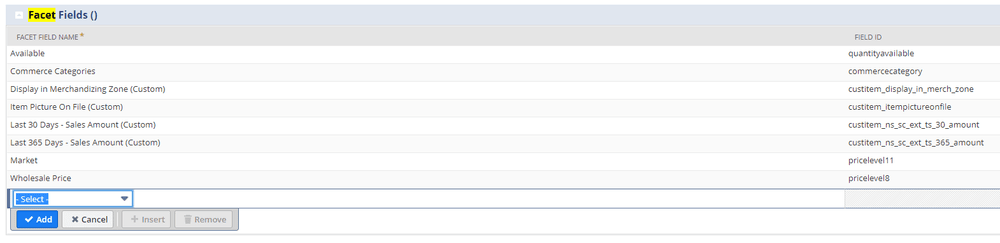
5. Similarly, ensure to include your Sort Criteria in the Website Setup.
Need a refresher on sort fields configuration? Check out this tutorial on Sorting Items in SuiteCommerce!

6. It's crucial to check that the fields mentioned above are part of the Fieldset intended for the merchandising zone.
7. Next, you can work on creating your Merchandising Rule. In the end, it should look something like this:
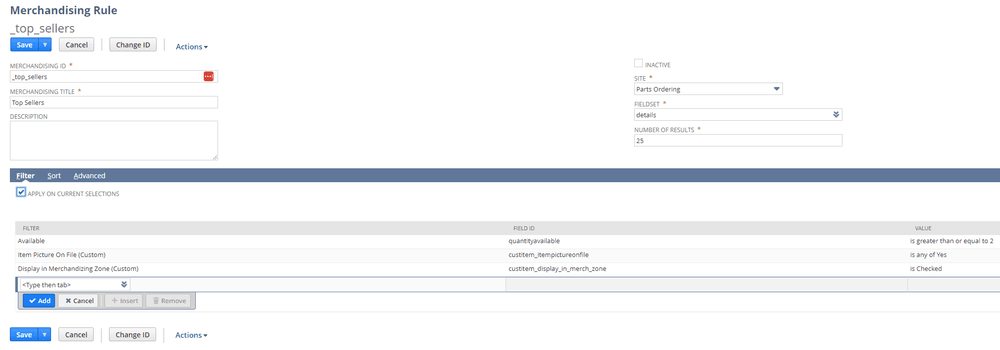
8. Lastly, you will add the Merchandising Zone through SMT, choose the display option (Grid vs. Slider), and select the Merchandising Rule.
A Few Common Merchandising Zone Issues
1. Newly added Filter/Sort options might mysteriously disappear from the list (this issue can also occur with your Fieldset selector)
If you encounter this issue, follow these steps:
Click the dropdown selector on the merchandising rule a few times.
Navigate to Customization > Lists, Records, and Fields > Record Types, find Website Fieldsets, Website Filters, and/or Website Sorts in the record list, and click List.

Locate the Fieldset/Filter/Sort you're looking for and click Edit.

Ensure the Site Name field corresponds with the Internal Name of the site you’re setting up on your Website Setup Record. If they are different, update the site name on the Fieldset/Filter/Sort record accordingly.

After completing this step, the Fieldset/Filter/Sort should be accessible in the Merchandising Rule.
2. Following the resolution of your Fieldset/Filter/Sort issues, you might encounter results/errors in your console
If you see a console error about the item.image.url or if you get no or very few results in your Merchandising Zone, it may be due to the Merchandising Zone attempting to show an item without an associated image. In some cases, this might entirely prevent any items from displaying; in others, it may show only a handful - but far fewer than expected. You have two solutions to fix this issue:
Add associated images for all items (the best option). (Check out our associated images SuiteCommerce bundle for easier image management!)
Create a checkbox on the item record labeled 'Eligible for Merchandising Zone' or something similar. Then identify items with images that should be eligible for display in the zone according to the filtering rules, check that box on the respective item records, and use this checkbox as a filter. This will prevent items without images from interfering with the zone.

3. Once your errors are resolved, you may see a display like this
This indicates that your template/CSS files require an update. Great! To do this, locate the relevant files at SuiteScripts: extensions: CXExtensibility: CoreContent@1.0.5.