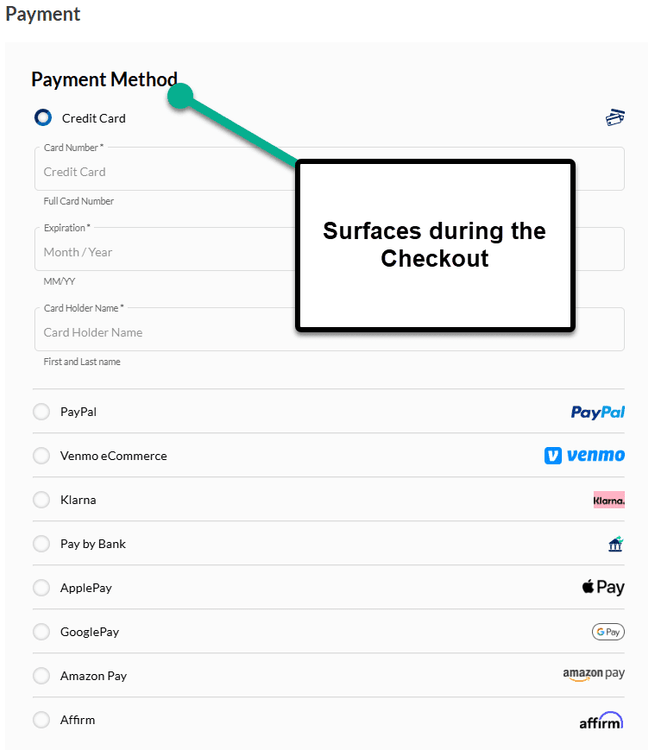
Versich has teamed up with SensePass to develop an integrated checkout solution specifically for NetSuite and SuiteCommerce Advanced users. This solution supports a variety of payment options, including credit cards, debit cards, Apple Pay, Klarna, Venmo, PayPal, and additional alternative payment methods.
With this collaboration, Versich provides a streamlined ‘One-Page’ Checkout experience. This guide outlines the steps for either the NetSuite Admin or Versich PM to implement this solution.
Install SensePass Payments Bundle
Once you receive your PayTrace API information from SensePass, the bundle will be ready to install.
Step 1: Access your NetSuite account and go to Customization > SuiteBuilder > Search & Install Bundles.
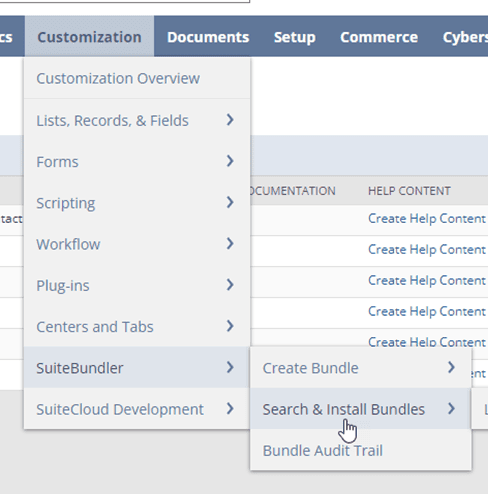
Step 2: On the next page, look for the bundle: SensePass Payments for SC.
Step 3: Click on the hyperlink for SensePass Payments, leading you to the overview page for the bundle before installation.
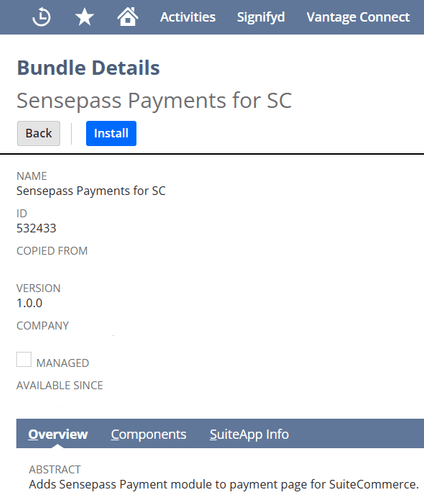
Step 4: You will enter the Bundle Preview page, where you can click on the Install Bundle button. Confirm the installation by clicking Okay on the popup.
At this stage, the SensePass Payments bundle installation will initiate in your NetSuite environment. You will be directed to a list of your installed bundles, showing the status of the installation, which might take up to 15 minutes.
Step 5: Hit Refresh at the top of the page to check the current status.

Congratulations, you've successfully installed the bundle!
Connect API with SensePass
Before processing payments, additional configurations are necessary to connect SensePass with NetSuite.
Step 1: In your NetSuite account, enter ‘SensePass Credentials’ in the Global Search bar and select ‘New SensePass Credentials’.
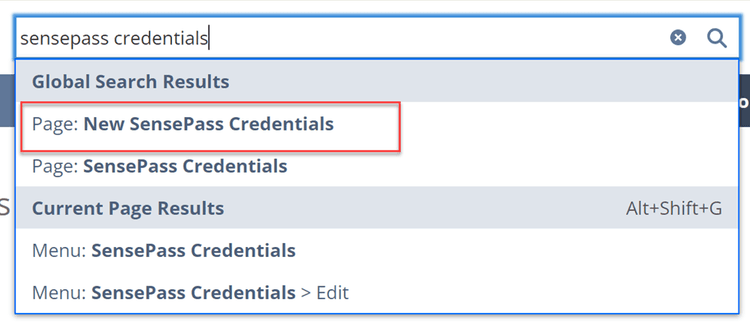
Step 2: On the resulting record, fill in the following fields:
API URL:
For Production Accounts: https://api.sensepass.com/api
For Sandbox Accounts: https://api.sandbox.sensepass.com/api
API KEY: Found in your SensePass Merchant Account.
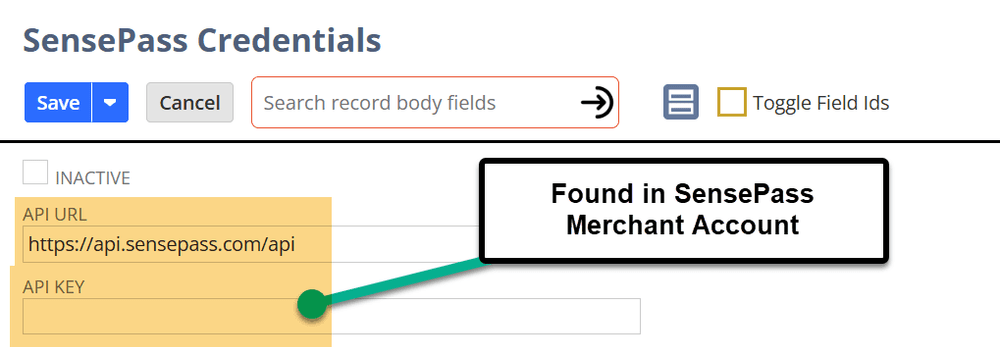
Step 3: Save the record after filling out the details.
Payments Logo URL
The SensePass Payments Bundle will upload images to your NetSuite File Cabinet. You will need to download an image from the bundle and upload it to the Live Hosting Files within your File Cabinet.
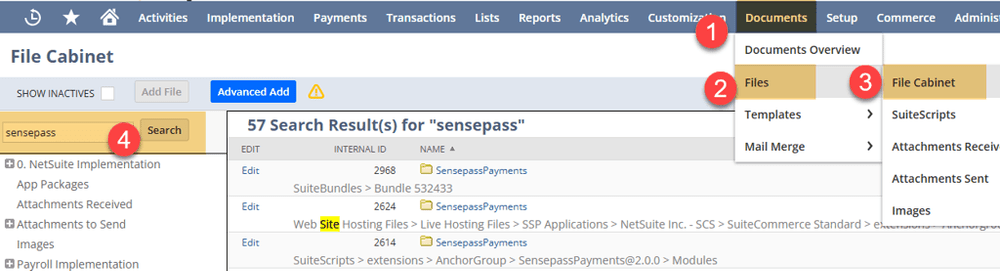
Step 1: Navigate to Documents > Files > Live Hosting Files. Type ‘SensePass’ in the search bar and click Search.
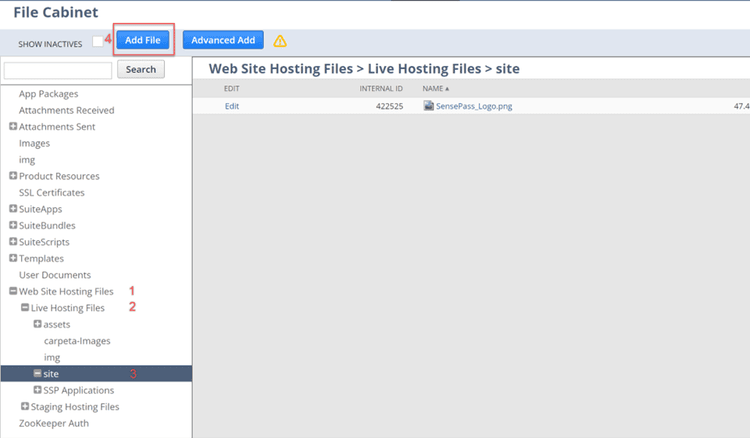
Step 2: After downloading the image to your computer, upload it to a different location in the file cabinet. Click Website Hosting Files > Live Hosting Files > Site, and click Add File. Locate the downloaded image and select it for upload.
Note: If the ‘site’ folder is absent, please create one.
Activate the SensePass Extension
It's time to activate the SensePass Payments extension.
Step 1: Navigate to Commerce > Extensions > Extension Manager. Edit the website and domain where you plan to use SensePass, then click Next.
Step 2: In the Extensions tab, check the box next to SensePass Payments Integration, and click Activate.
Step 3: Refresh the page until the status of the activation shows as Complete. You should see the SensePass extension listed under Active Extensions.

Verify Settings on the Custom Transaction Body Field
Step 1: Go to the Custom Transaction Body Field list through Customization > Lists, Records, and Fields > Transaction Body Fields.
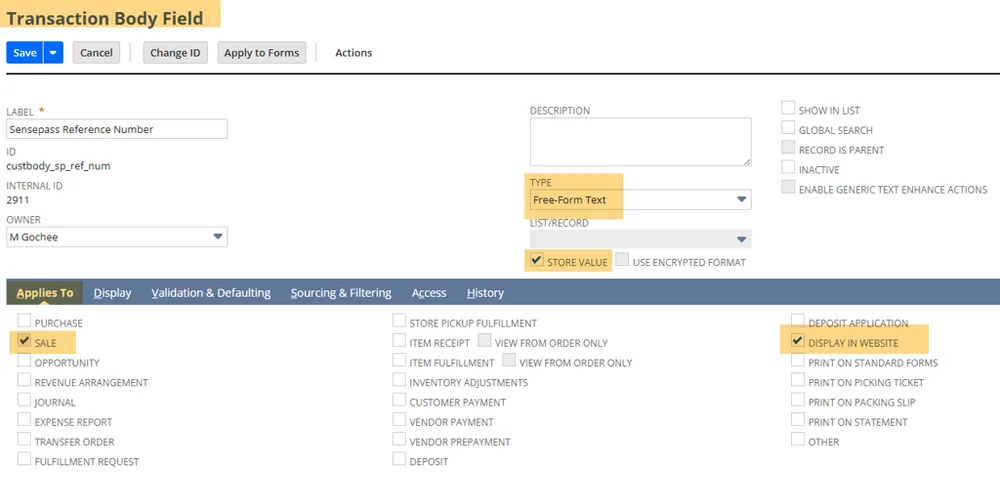
Step 2: Ensure that the SensePass Reference Number custom body field has the following settings.
Set the Type to Free-Form Text and check the Store Value box.
In the Applies To tab, make sure both Sale and Display in Webstore options are selected.
Step 3: Save the field. Keep this page open as we’ll refer to the custom field ID in the next section during Step 4.
Modify Website & Configuration Record
Next, check the webstore configuration record and enter necessary information.
Step 1: In your NetSuite account, go to Commerce > Websites > Configuration. Select the website and domain you’ll be using with SensePass and click Configure.
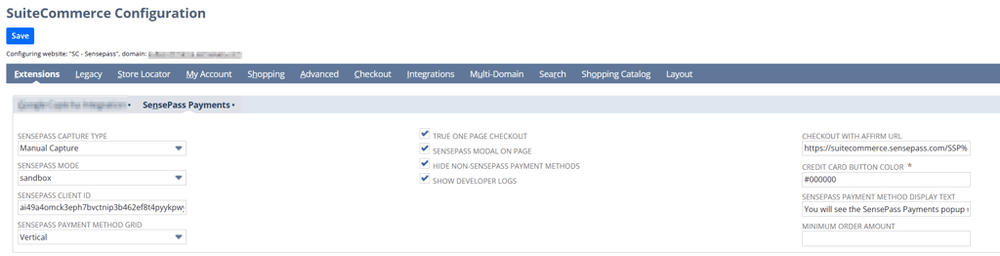
Step 2: Navigate to the Extensions Tab and then to the SensePass Payments subtab.
Here, you will find several fields:
SENSEPASS CAPTURE TYPE: Choose between Authorize or Manual Capture to delay in payment receipt, or utilize a Cash Sale for immediate payment capture upon checkout.
SENSEPASS MODE: Choose the SensePass Mode to operate for this site; typically, select Sandbox for testing environments and Production for live environments.
SENSEPASS CLIENT ID: Obtain this from your SensePass Merchant Account.
SENSEPASS PAYMENT METHOD GRID: Decide on the layout you'd like for the payment method grid.
TRUE ONE PAGE CHECKOUT: Check this to enable the one-page checkout. Essential for having the payment modal integrated on the page.
SENSEPASS MODAL ON PAGE: Select this to display the SensePass modal on the payment page. If unchecked, the modal will appear only prior to order submission.
HIDE NON-SENSE PAYMENT METHODS: Enable this to automatically select the SensePass payment method and conceal other payment options on the page.
SHOW DEVELOPER LOGS: This will display developer logs sent by the SensePass extension. It should be turned off for live sites.
CHECKOUT WITH AFFIRM URL: Perform a global search in NetSuite for 'sensepass_affirm.png'. Use the image result with multiple URL links and copy the URL linked to your SuiteCommerce site.
CREDIT CARD BUTTON COLOR: Specify the color of the ‘Pay with Credit Card' button using a 6-Digit Hex Color Code. For a solid red button, enter '#FF0000' (don’t forget the pound sign '#'). The default is black, '#000000'.
SENSEPASS PAYMENT METHOD DISPLAY TEXT: Customize the text shown when not using the SensePass Modal On Page feature. This text appears when selecting the SensePass payment method. The default is 'You will see the SensePass Payments popup upon placing your order on the next step. Once your payment is approved, your order will be placed.'
MINIMUM ORDER AMOUNT: If a minimum order amount is set for your site, paste the value from the website setup page here. Leave blank if not using a minimum order amount.
PAYMENT METHOD TITLE: Enter the name of the payment method to be displayed in the payment method option during Checkout. If omitted, a SensePass logo will appear for the SensePass payment option.
SENSEPASS PAY ELEMENT ID: This is the ID for the payment button (element) initiating the SensePass payment process during checkout.
Step 3: Go to the Advanced Tab > Custom Fields Subtab. In the Field ID on this subtab, insert the internal ID of the SensePass Reference number into this array.
Save the Configuration Record.
Step 4: After saving, go to Commerce > Websites > Website List and click Edit next to the relevant website. Under the Shopping tab, check the following options:
Display Purchase Order Field on Payment Info Page
Allow Non-Credit Card Payment Methods during Checkout

Step 5: Save the website setup record.
Create the SensePass Payment Method
Next, you will establish a SensePass payment method for web store transactions and sales orders.
Step 1: Go to Set Up > Accounting > Accounting Lists > New > Payment Method.
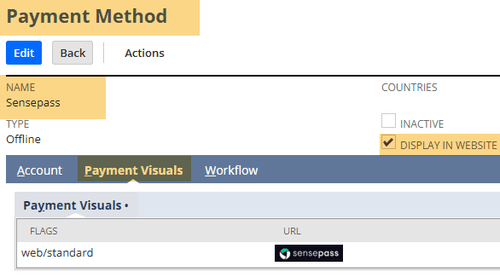
Step 2: Enter 'SensePass' in the NAME field, choose 'Offline' for the TYPE, and ensure the DISPLAY IN WEBSITE box is checked.
Ensure that the payment method name is precisely matched, as it is case sensitive - errors will arise if it is not inputted as ‘SensePass’.
Step 3: In the Payment Visuals tab, enter 'Web/Standard' in the FLAGS field and paste the following URL into the URL field: /site/SensePass_Logo.png.
Step 4: Click Add.
Step 5: Finally, click Save on the Payment Method.
Update the SensePass Payments Service File
Now, download the SensePassPayments.Service.ss file from the file cabinet and place it in the correct folder.
Step 1: Within the file cabinet (Documents > Files > File Cabinet), search for SensePassPayments.Service.ss.
Step 2: Hit Download on the file located at:
Website Hosting Files : Live Hosting Files : SSP Applications : NetSuite Inc. - SCS : SuiteCommerce Standard : extensions : Versich : SensePassPayments : services

Step 3: Then, click Edit on the file and go to the Permission Tab.
For Execute as Role, select CEO.
For Roles, click the Select All checkbox.
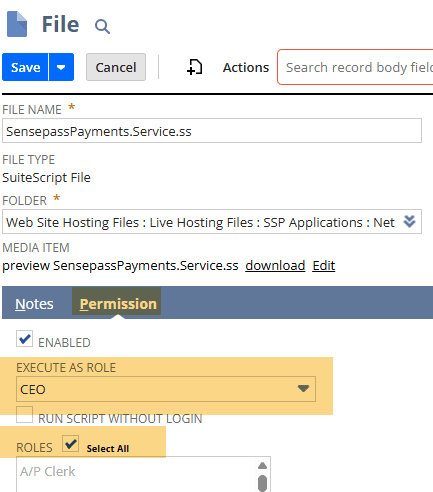
Step 4: After downloading the file, move it to the following folder:
Web Site Hosting Files > Live Hosting Files > SSP Applications > NetSuite Inc. - SCS > SuiteCommerce Standard > services.

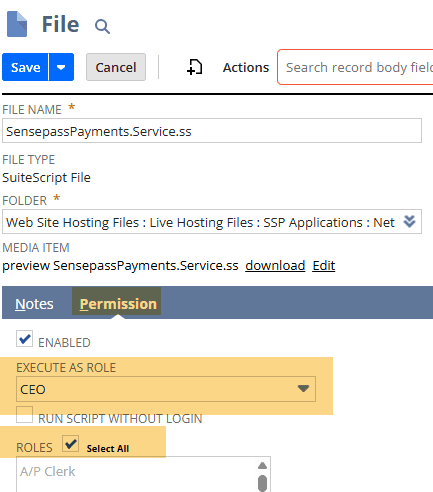
Step 5: Upon placing the file, repeat the earlier steps for this new file.
Click Edit on the file and go to the Permission Tab.
For Execute as Role, select CEO.
For Roles, tick the Select All checkbox.
Add Apple Pay Folder and File
Next, we need to create a folder and file in the file cabinet to facilitate Apple Pay functionality.
Step 1: In the file cabinet (Documents > Files > File Cabinet), go to Web Site Hosting Files > Live Hosting Files.
Step 2: Click New Folder to generate a new folder.

Step 3: Set the Folder Name to “.well-known” and save the folder.
Step 4: Click Add File to include your text file in the new folder.

Step 5: After adding the file, click Edit next to the image and ensure the URL matches the intended file path.

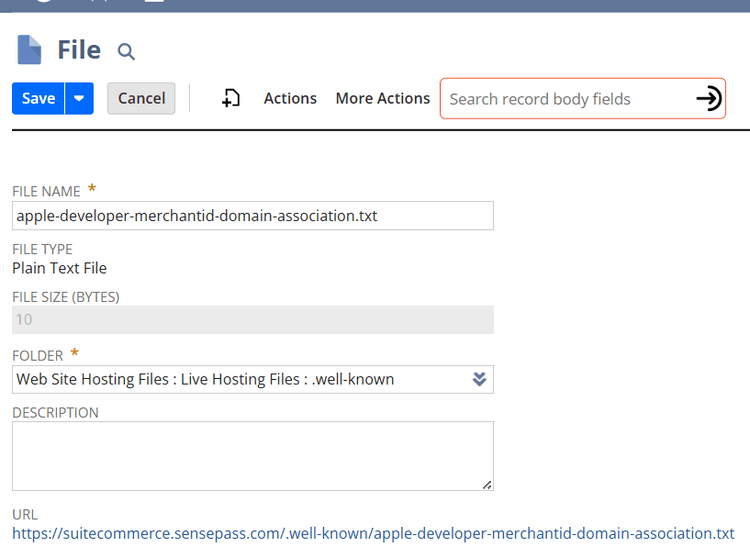
In SuiteCommerce, domains referring to the same hosting files will utilize the same folder structure and files. This means one file can be set per Hosting Files, not necessarily per domain.
Cache Invalidation Request
Once all previous steps are completed, make sure to invalidate the cache for your site to ensure immediate reflection of changes. Then, perform a hard refresh in your browser (Ctrl+Shift+R) to confirm you see the updated content.
SensePass Testing Cards
In this section, you will find the testing cards that SensePass sends to its customers. This information is helpful when your developers test the extension.
Congratulations. You have finished configuring the SensePass-NetSuite integration.