This tutorial explains how to deactivate extensions, remove them from the Extension Manager Record, and uninstall bundles in SuiteCommerce.
In this article, a NetSuite user with a SuiteCommerce Admin or Store Manager role will learn to (1) deactivate extensions, (2) remove extensions from the Extension Manager Record, and (3) uninstall bundles in the NetSuite SuiteCommerce or SuiteCommerce Advanced platform.
WARNING: It’s crucial to consult your SuiteCommerce partner or a SuiteCommerce consultant before removing any extensions. You want to ensure that this action won’t negatively impact your website by removing essential functionality.
Use Cases for this Article are to Complete the Following:
This article intends to address the following scenarios:
Your company has decided to conceal a webstore feature or remove an extension.
You need to reactivate extensions after a sandbox refresh, and some extensions are no longer necessary.
The extension manager becomes unresponsive and cannot activate the current extensions.
A key requirement is that the bundle “SuiteCommerce Extension Manager” must be correctly installed in the user's NetSuite account. For installation details, refer to the article on Installing Commerce Website Applications.
To understand more about activating the Extension Manager, check out this tutorial on Activating the Extension Manager in NetSuite.
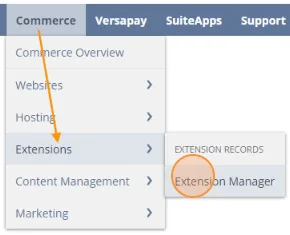
You can find the Extension Manager under Commerce > Extensions > Extension Manager.
Deactivating Extensions in the Extension Manager
Deactivating extensions turns off store functionality without removing the bundle. An easy way to grasp what this entails is to compare it to turning off the lights in a room; it doesn’t eliminate the electricity but simply stops its flow.
Important: Deactivating a bundle will result in the loss of any configuration settings stored in the Configuration Record. It’s wise to take a screenshot of your settings before deactivating them in case you need to restore them later.
To reach the Configuration Record, follow this navigation: click Commerce > Websites > Configuration, enter the site and domain, and select the Extensions tab along with the subtab of the extension you wish to deactivate.
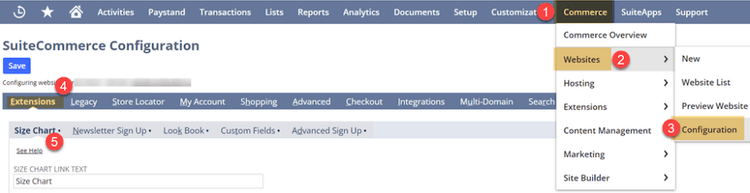
For this guide, we will be deactivating the Size Chart bundle.
To deactivate an extension, follow these steps:
Step 1: Go to Commerce > Extensions > Extension Manager
Step 2: Click the blue “Edit” button on the selected site.
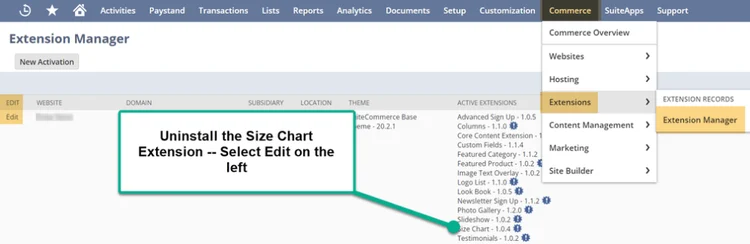
Step 3: Access the Extensions Tab.
Step 4: Uncheck the {SC Product Lead Time Bundle} in the far left column.
Step 5: Click the blue “Activate” button.
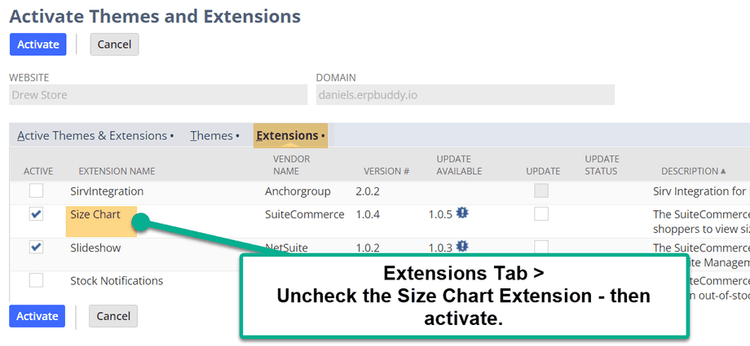
Step 6: Refresh the screen after NetSuite completes its 8-step activation sequence.
Step 7: Once the process is finished, the bundle will be deactivated.
Step 8: To verify, return to the Extension Manager (step 1) and check that the extension is not displayed.
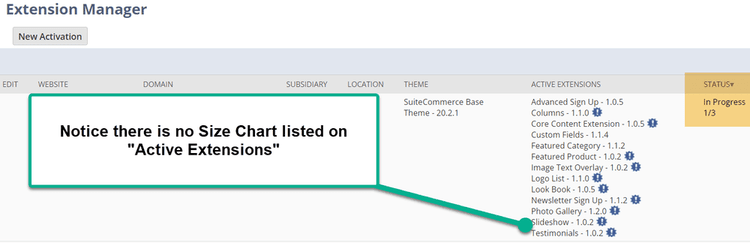
This method is commonly used to turn off bundles. Next, we will cover how to remove the extension from the Extension Manager Record.
Removing the Extension from the Extension Manager Record
It is possible to remove the extension from the Extension Record outside the Extension Manager. Users should consider this option when the Extension Manager is unresponsive or stuck. Similar to the electrical analogy, removing the extension from the Extension Manager Record is like flipping the circuit breaker to cut off lights in a room.
A common issue with the 2024 version of NetSuite was the SASS not compiling properly. For more details on this error, check out this article on How to Fix the Dart SASS Error.
Step 1: Deactivate the extension in the Extension Manager, as detailed in the previous section.
Step 2: Go to Customization > List, Record & Fields > Record Types
Step 3: Search for SC ExtMech Extension and click on the List link. Most often, records are sorted alphabetically, so you may need to browse through a few pages to find the SC ExtMech Extension record.
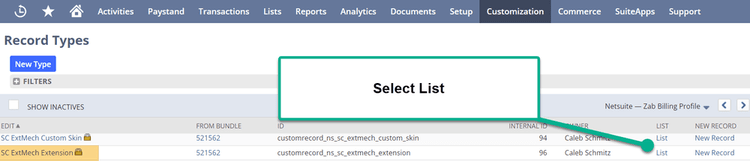
Step 4: Click “Edit” on the extension(s) you wish to remove.

Step 5: Hover over Actions and click the Delete button.
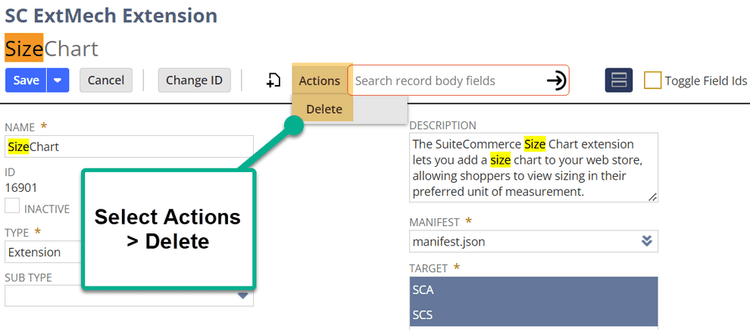
Step 6: Wait a few moments, then return to the Extension Manager (Commerce > Extensions > Extension Manager) and try to uninstall the extension again from the Bundle List page.
Step 7: Refresh the display once NetSuite completes its 8-step activation sequence.
This should remove the extension record from the Extension Manager.
Uninstall the Extension
The final option is to completely uninstall the extension. This should be your choice if you no longer need the extension and want to keep your NetSuite environment tidy. Using the electrical analogy, this is akin to shutting off the main power breaker, dismantling your light fixtures, and relying only on candles for lighting.
To uninstall extensions, follow these steps:
Step 1: Deactivate the required extension by using the process outlined previously.
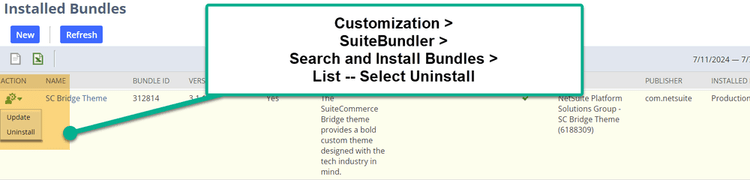
Step 2: Navigate to Customization > SuiteBundler > Search and Install Bundles > List
Step 3: In the “Action” column, click the “Uninstall” button.
Step 4: Select “OK” to confirm that uninstalling the bundle will remove all associated objects.
Step 5: Refresh the screen after NetSuite finishes its 8-step activation sequence.
Step 6: After this process is completed, the bundle will be uninstalled.
This is the procedure for completely uninstalling a bundle from your NetSuite environment.