

How to Connect Google Analytics (GA4) to Google Sheets
Exporting GA4 data manually every week is one of those tasks that sounds quick but never actually is. Here is a better way. Using a free tool called Coefficient, you can pull GA4 data directly into Google Sheets and have it refresh automatically on a schedule. This is exactly how I set it up.
Why connect GA4 to Google Sheets?
Google Analytics has its own reporting interface but it has real limitations when you need to do anything beyond the standard reports. You cannot easily combine GA4 data with data from other sources, build custom charts your way, or share a live view with someone who does not have a GA4 account.
Pulling GA4 data into Google Sheets fixes all of that. Once the data is in a spreadsheet, you can build pivot tables, create custom charts, blend it with CRM or ad spend data in adjacent columns, and share a link with anyone. And with Coefficient handling the refresh automatically, the data stays current without anyone needing to export anything manually.
If you are already using Google Sheets for reporting, this connection is worth setting up once and forgetting about.
What you need before starting
This setup is straightforward but make sure you have these ready before you begin. Skipping any of them is where most people lose time.
- A Google account with access to the GA4 property you want to connect
- The Coefficient add-on installed in Google Sheets (free plan available)
- A GA4 property that is actively collecting data
- Basic familiarity with Google Sheets you do not need to know any formulas for this
Install Coefficient first
Go to Google Sheets, click Extensions in the top menu, then Add-ons, then Get add-ons. Search for Coefficient and install it. It is free to get started and no credit card is needed.
The step-by-step connection process
Step 1: Open Coefficient in Google Sheets
Go to sheets.google.com and open a new or existing spreadsheet. Then follow these steps:
- Click Extensions in the top menu bar
- You will see Coefficient in the dropdown if it is already installed
- Click Coefficient → Launch
- A sidebar will open on the right side of your screen
If you do not see Coefficient in the Extensions menu, it means the add-on is not installed yet. Go to Extensions → Add-ons → Get add-ons, search for Coefficient, and install it. Then come back and repeat the steps above.
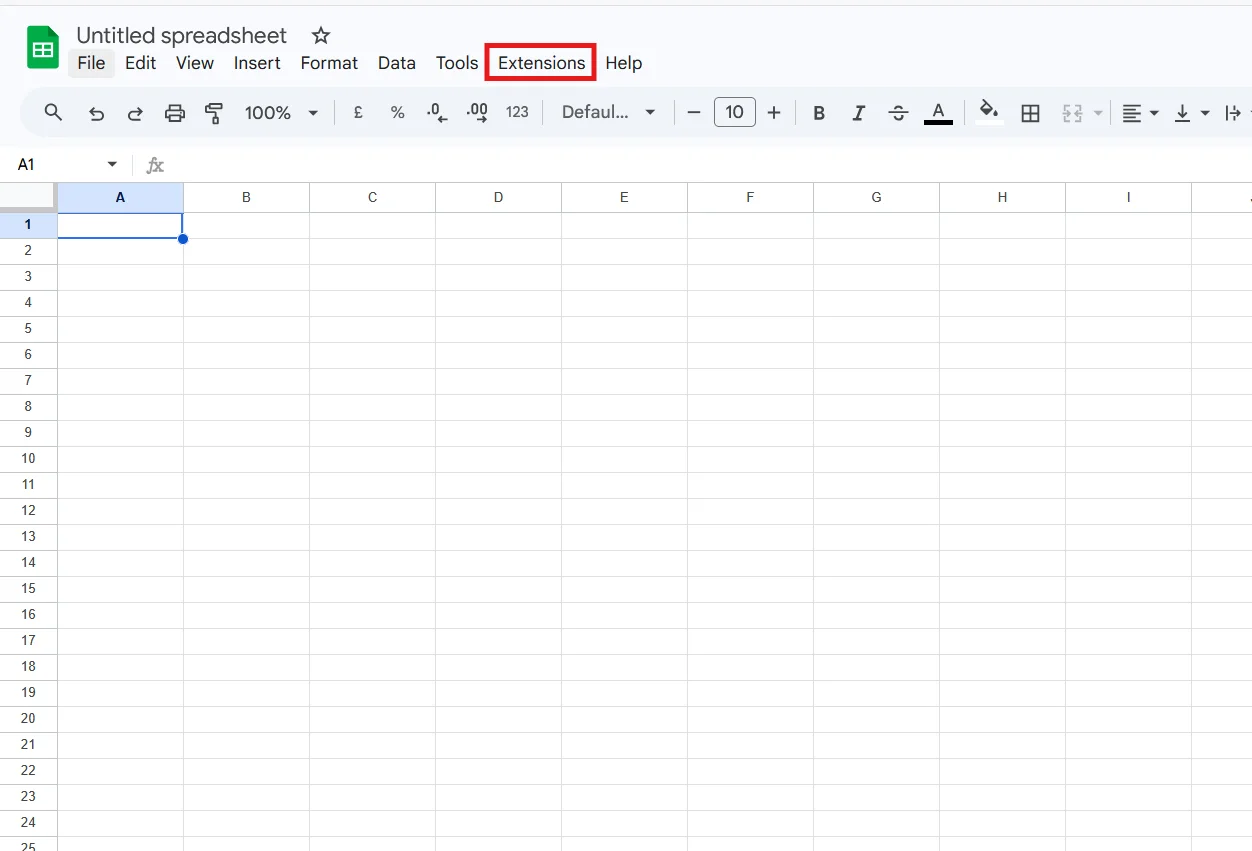
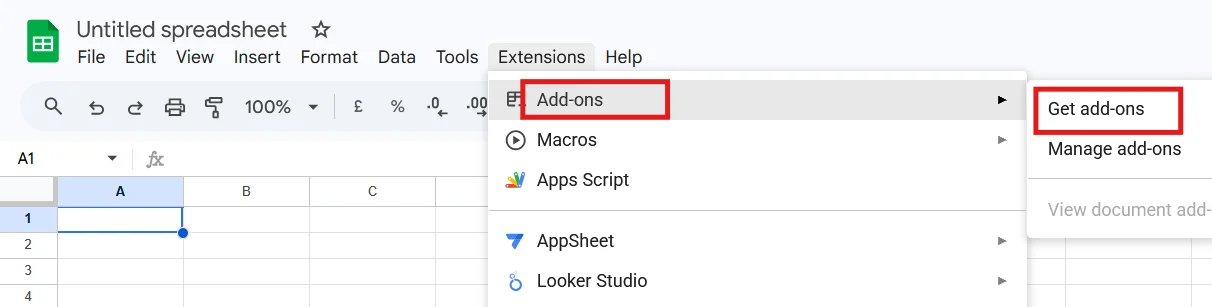
Step 2: Connect Google Analytics (GA4)
Once the Coefficient sidebar is open on the right, here is what to do:
- Click Import From… in the Coefficient sidebar
- A list of available data sources will appear
- Select Google Analytics from the list
- Click Connect
- A popup will appear asking you to sign in with your Google account
- Sign in and allow all the permissions it requests
- Once connected, your GA4 properties will appear in the sidebar
- Select the property or website you want to pull data from
Use the right Google account
Sign in with the same Google account that has access to your GA4 property. If you have multiple Google accounts and sign into the wrong one, your GA4 properties will not appear. Close the popup and try again with the correct account.
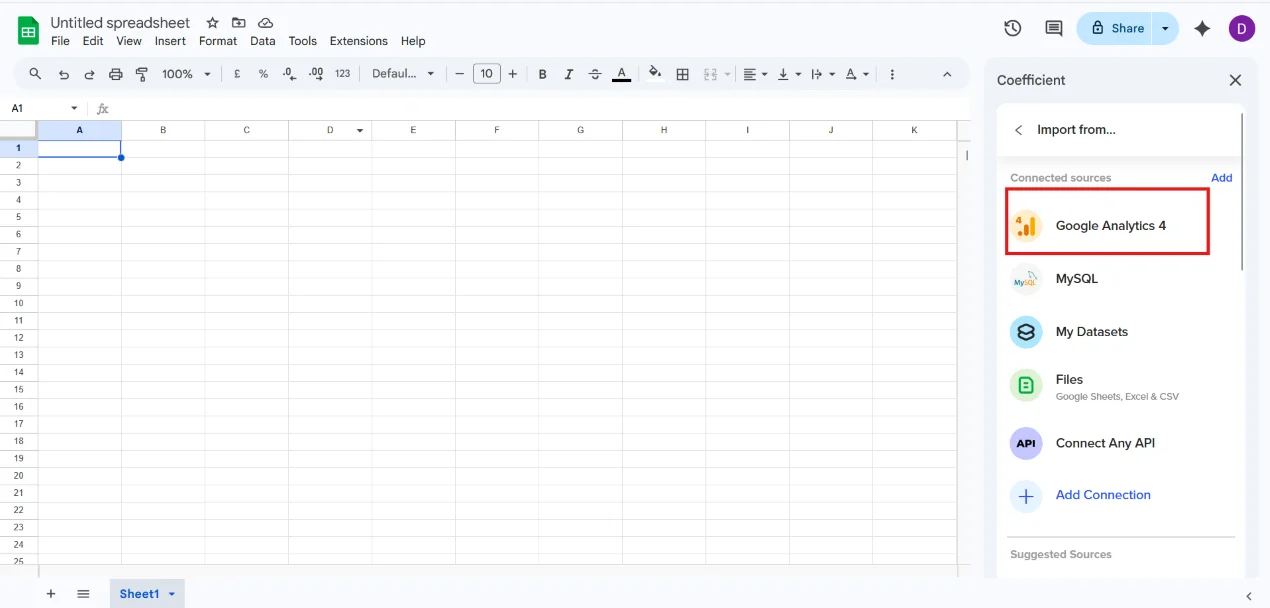
Step 3: Choose your data the most important step
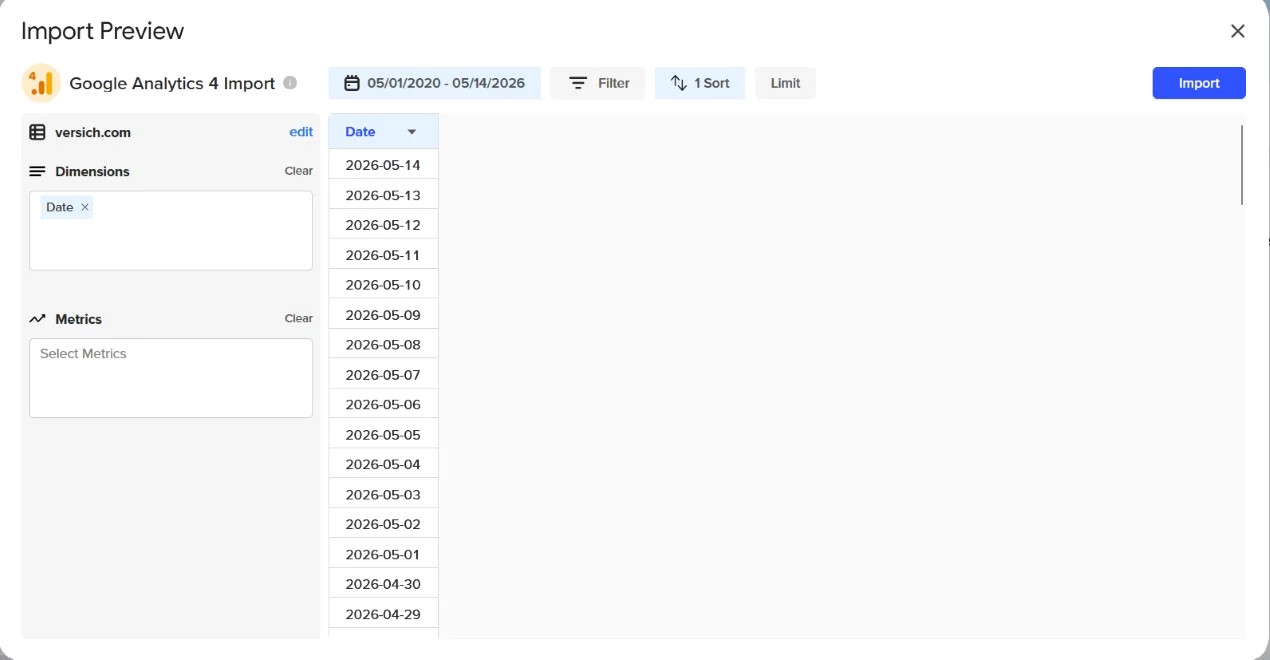
This is where you configure what GA4 data actually comes into your sheet. Take your time here because getting this right means you only need to set it up once.
- Set Date Range to Custom
- Enter your GA4 property launch date as the start date and today as the end date if you want full historical data, or set a rolling window like Last 90 Days for ongoing reporting
- Choose your Metrics (the numbers you want to track)
- Choose your Dimensions (the categories to break those numbers down by)
- Click Import
Your GA4 data will appear in your Google Sheet as a clean table within a few seconds.
The best metrics and dimensions to start with
Choosing the right combination of metrics and dimensions determines how useful your sheet is. Here are the ones that cover most reporting needs without overcomplicating the import.
Recommended Metrics | Recommended Dimensions |
| Sessions | Date |
| Active Users | Country |
| New Users | Page Path |
| Page Views | Device Category |
| Bounce Rate | Landing Page |
| Avg Session Duration | Channel Grouping |
| Conversions | Campaign Name |
Always include Date as a dimension
Without Date in your dimensions, all your data collapses into a single row with no time breakdown. That makes trend analysis impossible. Date should be in almost every import you set up.
Setting up automatic data refresh
This is the part that most people do not realise is available. Coefficient can refresh your GA4 data on a schedule so your sheet always has current numbers without you doing anything manually.
After your first import loads, look for the Schedule Refresh or Auto Update option in the Coefficient sidebar. You can set it to refresh hourly, daily, or weekly depending on how current you need the data to be.
For most reporting use cases, a daily refresh at a set time works well. Once this is configured, you can share the Google Sheet with your team and they will always see up-to-date GA4 data without needing to do anything themselves.
Set refresh time outside business hours
Schedule your refresh for early morning, around 6am or 7am, so the data is current by the time your team starts their day. Refreshing during peak usage hours can occasionally cause slowdowns in the sheet.
Troubleshooting common errors
These are the most common issues that come up when setting this connection up for the first time.
- GA4 property not showing after sign-in : The Google account you signed in with does not have access to the GA4 property. Check in Google Analytics that the account has at least Viewer access. If someone else manages GA4, ask them to add your Google account as a user under Admin → Account Access Management.
- Data imports but all cells are empty : This almost always means you selected only dimensions and no metrics, or you selected metrics that have no data for the date range you specified. Go back into the Coefficient import settings, confirm at least one metric is selected, and try a broader date range to make sure there is data available for that period.
- Import fails with a dimension limit error : You have selected more than 9 dimensions. GA4 enforces a hard limit of 9 dimensions per query. Remove dimensions until you are at 9 or below. If you need more, split the import into two separate sheets and use VLOOKUP or IMPORTRANGE to combine them.
- Coefficient sidebar not loading or showing blank : Try refreshing the Google Sheet tab. If the sidebar is still blank, go to Extensions → Coefficient → Launch again to reopen it. If that does not work, reload the sheet in a fresh browser tab. Coefficient sidebars occasionally need a hard refresh after a browser update or a long inactive session.
Common mistakes to avoid
- Not including Date as a dimension. Without it, all your data aggregates into one row. Always add Date unless you specifically want a single total.
- Selecting more than 9 dimensions. GA4 will reject the query. Keep each import at 9 or below.
- Signing in with the wrong Google account. If your GA4 property does not appear after connecting, this is almost always the reason. Sign out, sign back in with the correct account.
- Not setting up auto-refresh. If you import data once and never configure a refresh schedule, the sheet will show stale data. Always set up a refresh schedule before sharing the sheet with anyone.
- Putting too many metrics in one import. More metrics means a slower import and a wider table. Start with the 5 to 7 metrics you actually look at and add more only when you need them.




