
Organizing a Saved Search with Two Formula Result Columns
In a NetSuite Saved Search, you might come across situations where sorting by two numeric formulas you've created is necessary.
When managing NetSuite Saved Searches, you might run into challenges when wanting to order results by two numeric formulas that you've combined.
Issues That Occur When Sorting Two Numeric Formulas
One challenge you will face is that if you have two numeric formulas and aim to sort by the first and then the second, it will not allow you to select the latter. Furthermore, utilizing a text formula type won't enable proper numerical sorting (for instance, 92 will come after 919 but before 920).
How to Overcome this Results Sorting Challenge
To tackle this issue, you should use one formula as a currency type and the other as a numeric type. (The results subtab for my illustrative saved search is shown below.)
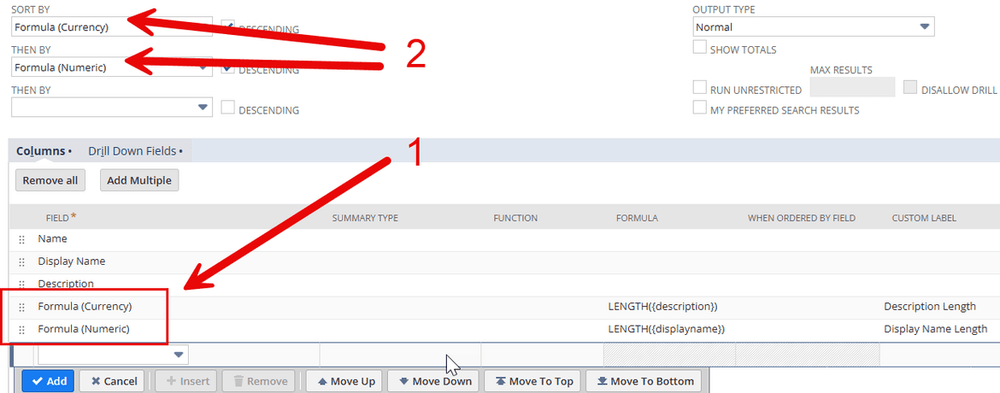
In step 1 mentioned above, you can observe that I've added two formulas: one of Numeric Type and one of Currency type.
In step 2, you'll note that I sorted these first by currency and then by numeric. (The opposite sorting is also achievable.)
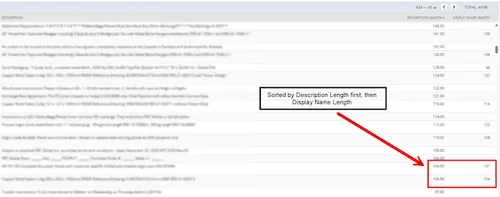
With the use of these two distinct formula types, I can now view the results of my Saved Search, sorted first by my Description Length (currency) formula, followed by my Display Name Length (numeric) formula.
Encountered an Issue in This Article?
We strive to keep our blogs and articles updated to ensure they effectively assist in resolving any troubleshooting challenges you might face. Occasionally, a related feature to enable or a field to fill in might be overlooked during the instructions. If this article did not address your concern, please reach out through chat so we can enhance this content!