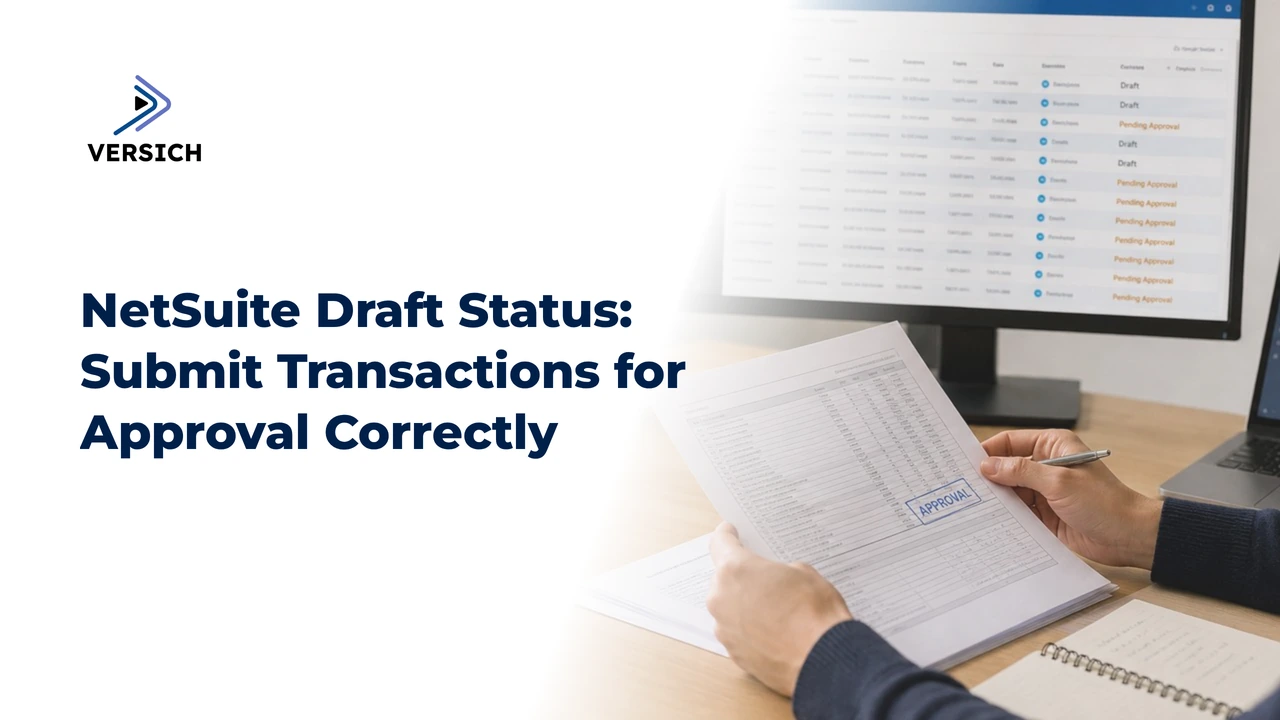
A NetSuite draft status means a transaction has been created but is not yet ready for final processing, posting, or payment. To submit a transaction for approval correctly, the user must save the record with the required fields, use the appropriate submission action, satisfy the workflow conditions, and have the role permissions needed to start the approval route. If any of those pieces are missing, the transaction may remain in draft, show a different status such as Pending Approval, or bypass the intended review process.
The important distinction is that draft status and approval status are not always the same field or workflow state. NetSuite transaction behavior depends on the transaction type, accounting preferences, role permissions, standard approval settings, custom SuiteFlow workflows, and any SuiteScript or integration logic affecting the record. A reliable process makes each status meaningful, gives users one clear submission path, and prevents an unapproved transaction from being treated as final.
What Does NetSuite Draft Status Mean?
NetSuite draft status identifies a transaction that has been started but has not completed the next required business step. That step might be approval, review, correction, conversion, fulfillment, or posting, depending on the transaction type and configuration.
For example, a vendor bill might be saved while it is still being checked. A purchase order might require department or management approval before release. A journal entry might remain in a review state until an authorized user confirms the accounts, amount, period, and supporting explanation.
NetSuite does not use one universal draft model for every transaction. The visible status depends on the record type and configuration. Common statuses and workflow labels include:
| Status or state | What it generally indicates | What the user should do |
|---|---|---|
| Draft | The transaction is incomplete or intentionally held for later work | Complete required fields and review the record |
| Pending Approval | The transaction has entered an approval route but is not approved | Wait for the assigned approver or correct the routing |
| Rejected | An approver declined the transaction or sent it back | Review the reason, update the record, and resubmit if permitted |
| Approved | Required approval conditions have been met | Continue to the next controlled process |
| Pending | The transaction is waiting for another operational or accounting event | Check the record type and workflow conditions |
| Open | The transaction is active and available for its next business action | Follow the normal fulfillment, billing, or payment process |
| Closed or processed | The transaction has completed the relevant lifecycle step | Do not recreate it unless the accounting process requires a controlled correction |
A custom workflow status can use any label an organization chooses. That flexibility helps teams describe their process, but it also creates risk when labels such as Draft, Submitted, Approved, and Processed are used inconsistently. The label should communicate both the record’s current condition and the action that is allowed next.
Why Does a NetSuite Transaction Stay in Draft?
A NetSuite transaction stays in draft when the record was saved without starting the approval route, when a workflow condition was not met, or when the user lacks the action or permission required to submit it. The visible symptom is simple, but the underlying cause can be configuration, data, permissions, or user behavior.
The most common causes are:
The record was saved instead of submitted. Saving preserves the transaction but does not necessarily initiate approval. A user might close the record after selecting Save, assuming the workflow will begin automatically.
Required fields are incomplete. Missing subsidiary, department, location, class, currency, vendor, account, tax, or line-level data can prevent a transaction from satisfying workflow criteria. Some required values come from form configuration, while others are enforced by scripts or accounting rules.
The transaction does not meet the workflow condition. A workflow might route transactions only when the amount exceeds a threshold, the subsidiary matches a condition, the department is included, or a custom approval flag is set. A transaction outside those conditions can remain in its prior state.
The user cannot initiate the workflow. Role permissions affect whether a person can edit, submit, approve, or change a transaction. A custom button visible on a form does not automatically grant the underlying permission.
The record is being created through an integration. An integration may create the transaction with a status that differs from a transaction entered through the user interface. The integration role, execution context, form, and field mappings all matter.
A workflow transition is missing. A workflow might define an approval state but lack a valid transition from Draft to Pending Approval. The result is a record that appears ready but has no permitted route forward.
The transaction was edited after approval. Depending on the setup, an edit can return the transaction to a review state, preserve approval, or create a new approval requirement. That behavior must be designed explicitly, especially for financial records.
A useful troubleshooting approach starts with the record’s system notes and workflow history. Check who created or edited the record, which status changed, whether the workflow initiated, and whether the execution context was user interface, CSV import, web services, or another source.
How Do You Submit a Transaction for Approval in NetSuite?
To submit a transaction for approval in NetSuite, open the saved transaction, confirm that all required information is complete, select the configured approval action such as Submit for Approval, and verify that the status changes to Pending Approval or the organization’s equivalent review state.
The exact button label depends on the transaction type, form, and workflow. Some organizations use standard approval behavior. Others configure a SuiteFlow button, a custom transition, or a scripted action. The correct process is not simply to find any button that appears to move the record forward. The action must start the intended workflow and create the expected audit history.
Use this sequence as a practical review:
Open the correct transaction record. Confirm that you are working on the intended transaction, subsidiary, vendor or customer, accounting period, currency, and transaction number.
Complete the required header and line fields. Review amounts, accounts, departments, classes, locations, tax details, dates, terms, and supporting files. A record that looks complete visually can still fail a hidden workflow or validation condition.
Confirm the approval-relevant values. Check the transaction amount, department, subsidiary, location, transaction type, and any custom approval fields that determine the route.
Save the transaction if required. Some workflows evaluate saved records and expose the approval action only after the initial save. Other configurations provide the submission action during creation.
Select the configured submission action. Use Submit for Approval or the organization’s defined equivalent. Do not use Approve unless you are an authorized approver and the record is already in the correct approval state.
Verify the resulting status. Confirm that the record changed from Draft to Pending Approval or another defined review state. Check for an approver, workflow history, system note, notification, or approval assignment.
Review the record after submission. Confirm that the transaction did not post, release, or move to payment prematurely. Approval should be a control point, not merely a visual label.
The final verification step matters because a button can appear to work while the record remains outside the intended control process. A status change without an assigned approver is not a complete approval workflow.
Draft Status vs. Pending Approval in NetSuite
Draft status means the transaction is still being prepared or has not entered the approval route. Pending Approval means the record has been submitted and is waiting for an authorized decision. Treating these states as interchangeable creates confusion for preparers, approvers, reporting teams, and downstream integrations.
The distinction should be visible in three places:
The transaction form, where the user sees the next available action.
Saved searches and dashboards, where teams monitor records waiting for review.
Workflow and integration logic, where downstream actions are allowed or blocked based on status.
A draft transaction should normally remain editable by its preparer, subject to permissions and business rules. A pending transaction should have more controlled editing. If changes are allowed during approval, the workflow should define whether the record restarts approval, preserves existing approval, or requires a new review only when specified fields change.
For example, changing a memo may not justify a new approval. Changing the amount, vendor, bank information, accounting period, or expense account usually deserves more scrutiny. The workflow should identify approval-sensitive fields rather than treating every edit identically.
This is also where reporting problems appear. A saved search that filters only for Draft can miss transactions using a custom status such as Awaiting Review. A saved search that filters on a generic approval field may include records that never entered the actual workflow. Reports should use the exact status and conditions that represent the organization’s process.
How NetSuite Approval Workflows Move Transactions Forward
NetSuite approval workflows move transactions through defined states using conditions, transitions, actions, and role-based permissions. SuiteFlow can evaluate transaction data, display buttons, send notifications, assign approvers, update fields, and prevent or permit transitions.
A dependable workflow defines the complete lifecycle rather than only the approval step. At minimum, map these states:
Draft or preparation
Submitted for approval
Approved
Rejected or returned
Resubmitted
Canceled, closed, or processed
Each transition should have a clear trigger and an owner. The workflow should also define what happens when no approver is found, when the approver is inactive, when a threshold changes, or when the transaction is edited during review.
Conditions deserve close attention. A condition based on transaction amount might use the total, a line amount, a foreign currency value, or a custom calculated field. A condition based on subsidiary or department might behave differently for transactions created by an integration. These details should be tested with representative records.
Approval routing can also depend on employee hierarchy, a designated approver field, department leadership, a custom approval matrix, or multiple sequential approvals. If the organization operates across countries or subsidiaries, confirm how currency and subsidiary rules affect thresholds. A US-dollar threshold should not be assumed to behave correctly for transactions entered in Canadian dollars, euros, or pounds without a deliberate conversion rule.
Versich’s guidance on building NetSuite approval paths that hold up covers the importance of testing transitions, permissions, execution contexts, rejected transactions, resubmissions, and edits after approval.
What Permissions Are Needed to Submit Transactions?
The permissions needed to submit a transaction depend on the record type, role, form, workflow, and approval configuration. A user may be able to create and edit a transaction but still lack the ability to submit it for approval or move it into the next workflow state.
Review permissions at several levels:
Record permissions. The role needs the appropriate access to create, view, edit, or approve the transaction type. A role with Create access may not have the same capabilities as a role with Full access.
Workflow permissions. Workflow actions and transitions can be limited by role, employee, department, subsidiary, or other conditions. A user might see a record but not qualify for the transition.
Employee and approver permissions. The assigned approver must be active, authorized, and able to access the relevant transaction and subsidiary. A missing or inactive approver can stop the route after submission.
Form and button visibility. Different transaction forms can expose different fields and buttons. Audience settings, preferred forms, and role-specific form assignments can make the same transaction behave differently for two users.
Accounting and period controls. A transaction might be editable in one accounting period but restricted in another. Period locks and posting permissions can affect the next step even when they do not explain the initial Draft status.
Security should be tested with the actual roles used in production. Testing only as an administrator hides permission problems and creates false confidence. The test matrix should include preparers, approvers, finance administrators, integration roles, and any substitute or delegated approver roles.
How to Troubleshoot “Submit for Approval” in NetSuite
When Submit for Approval is missing, inactive, or does not change the status, isolate the issue in this order:
Confirm the transaction type and current status.
Check whether the record is complete and saved.
Review the form and role used by the affected employee.
Inspect workflow initiation rules and state transitions.
Confirm that the employee qualifies as a preparer and that an approver exists.
Review system notes, workflow history, script logs, and integration logs.
Reproduce the issue in a sandbox with the same role and representative data.
The workflow’s initiation setting is especially important. A workflow can initiate on record creation, record view, record update, or a scheduled event. If the workflow initiates only on update, a newly created transaction may not enter the workflow until someone edits and saves it. If it initiates on create but the record is created through a context excluded by the workflow, an integration-created transaction may behave differently from a manually entered one.
Execution context is another practical detail. User interface, CSV import, web services, scheduled scripts, and REST-based integrations can trigger different workflow behavior when the workflow is configured to exclude or include specific contexts. Always test the source that creates the real transaction.
If a custom script controls status changes, review whether it uses internal IDs, custom fields, or hard-coded status values. A script that expects one workflow state can fail after a form or workflow update. Where possible, document the relationship between workflow states, custom status fields, and script logic so future administrators do not treat them as independent settings.
For targeted help identifying whether the problem belongs to role permissions, workflow setup, transaction data, or custom code, NetSuite troubleshooting support is a practical starting point.
How to Prevent Unapproved Transactions From Moving Forward
Preventing unapproved transactions requires controls beyond the Submit for Approval button. The system should block sensitive downstream actions until the required approval conditions are satisfied.
For example, a purchase order should not be treated as released merely because it exists. A vendor bill should not proceed to payment because it was created successfully. A journal entry should not post to the ledger if the approval route failed silently. Each downstream process should check the authoritative status before acting.
Good controls include:
Use distinct statuses for preparation, submission, approval, rejection, and completion.
Keep approval-sensitive fields visible to approvers.
Require a new review when material fields change.
Prevent preparers from approving their own transactions when separation of duties requires independent review.
Assign an explicit owner for missing or inactive approvers.
Use saved searches to report on draft records aging beyond an expected time.
Log who submitted, approved, rejected, or edited the transaction.
Test integrations to confirm they do not set an approved or processed state without authorization.
Make rejection reasons available to the preparer.
Confirm that notifications match the actual workflow state.
System notes provide important history, but approval reporting should not depend on notes alone. Add clear approval fields where the business needs reliable reporting, such as submission date, current approver, approval level, rejection reason, or last approval-sensitive edit date. Avoid duplicating status fields without defining which one is authoritative.


A Practical Test Plan for NetSuite Transaction Approval
Testing NetSuite transaction approval should cover normal submissions, exceptions, permissions, edits, and non-user-interface sources. A single successful test does not prove that the workflow protects the accounting process.
Test at least one record for each material route:
A transaction below the first approval threshold.
A transaction that requires one approval.
A transaction that requires multiple sequential approvals.
A transaction with missing required data.
A rejected transaction that is corrected and resubmitted.
An approved transaction edited afterward.
A transaction created through CSV import or an integration.
A transaction with no valid approver.
A transaction in a restricted accounting period.
A transaction using a foreign currency or another subsidiary, when applicable.
For every test, record the expected status, actual status, visible buttons, assigned approver, notification behavior, system notes, and downstream permissions. Include the role used to create, submit, approve, reject, and edit the transaction.
The strongest test cases verify negative behavior. Confirm that an unapproved transaction cannot be paid, posted, released, or exported when those actions should be restricted. Confirm that a rejected transaction does not remain eligible for downstream processing. Confirm that a changed amount triggers the intended reapproval behavior.
If approval failures affect several transaction types or require coordination between workflows, forms, roles, and integrations, our NetSuite consulting team can help map the process and identify where the status transition breaks down.
Conclusion: Decide What Your NetSuite Statuses Permit
A NetSuite draft status is useful only when it has a precise meaning and a controlled next step. The reliable approach is to separate preparation from submission, submission from approval, and approval from downstream processing. Then connect each transition to the right conditions, roles, notifications, audit history, and prevention controls.
Before changing a workflow, decide what each status permits. Ask whether a draft can be edited, whether a pending transaction can move to payment, which fields trigger reapproval, and who owns a route with no valid approver. Those decisions turn a confusing status label into an operational control.
If your team is troubleshooting a transaction that remains in draft or enters the wrong approval path, contact Versich with the transaction type, affected role, current status, workflow behavior, and creation source. That information gives the review a clear starting point and helps determine whether the correction belongs in the record, form, role, workflow, script, or integration.