A message arrives in Gmail, gets a label applied to it, and still gets buried before the right person sees it. This guide covers Gmail labels to Slack using n8n, a way to turn that label into a controlled notification workflow that sends the right email to the right Slack channel without forwarding the entire inbox.
The important distinction is that this is not simply an email to chat connection. Gmail labels become routing signals. n8n reads the message event, checks the label or message metadata, formats useful context, and sends a deliberate Slack notification. From there, we can add conditions for priority, sender, keywords, attachments, business hours, or escalation rules.
This kind of setup lets us monitor selected Gmail labels, filter messages before notification, format the alert with expressions such as {{ $json.subject }}, and send the result through the Slack node. A reliable workflow also handles duplicate executions, missing fields, authentication failures, and Slack delivery errors instead of treating every incoming message as an urgent alert.
Why route Gmail labels into Slack?
Email and Slack serve different purposes. Gmail is designed for storage, correspondence, search, and record keeping. Slack is designed for visible, fast moving team communication. Connecting the two lets a team stay informed without watching an inbox continuously.
The value comes from using labels as an intentional classification layer. For example, a Gmail rule might apply an urgent-review label when an email arrives from a defined sender or contains a particular phrase. n8n then watches for that signal and posts a concise alert to a chosen Slack channel.
This approach is more controlled than forwarding every email because the workflow only acts on messages that meet a known condition. It also preserves Gmail as the system of record. The Slack message is an operational notification, not a replacement for the original email.
Common routing patterns include:
A label for messages requiring same day attention
A label for customer replies that need a response
A label for invoices or approval requests
A label for security notifications
A label for messages assigned to a particular team
A label for emails that contain attachments requiring review
Define the purpose of each label before building the n8n workflow. A label named important might be too broad if Gmail applies it automatically. A more deliberate label such as slack-support-alert gives the automation a clear contract.
For broader examples of how n8n connects email, notifications, and business systems, see Versich's overview of n8n workflow automation use cases. This article focuses specifically on the label driven pattern covered here, including the filtering and reliability decisions a general use case overview does not go into.
How the workflow works
[Suggested: insert a screenshot of the full n8n canvas here, showing the node sequence described below, before the numbered list.]
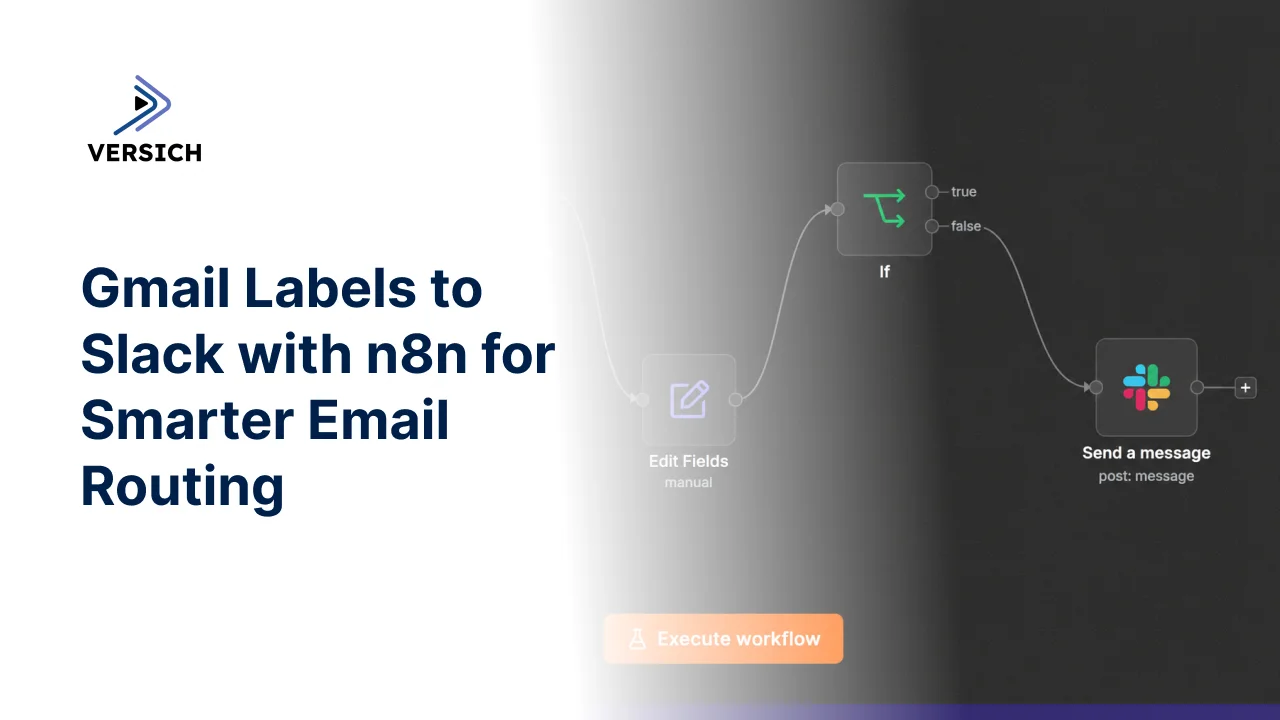
A practical workflow consists of named n8n nodes connected in a predictable sequence. The Gmail Trigger receives a new message event, the Gmail node retrieves or searches for the relevant message details, a Code or Set node normalizes the data, an IF or Switch node decides whether the label qualifies, and the Slack node posts the alert.
The sequence is:
The Gmail Trigger watches for a received message and limits monitoring to the selected Gmail label where supported.
The Gmail node retrieves the message, including the subject, sender, body preview, thread identifier, and label information needed for routing.
The Set node maps the fields into a stable internal format, such as
subject,sender,snippet,threadId, andlabels.The IF node checks whether the message contains the required routing label or meets a secondary condition.
The Slack node sends a message to the configured channel with a link back to Gmail.
An optional Data Store or database step records the Gmail message ID so a repeated event does not create another alert.
The exact Gmail fields depend on the operation and version of the Gmail integration (see the official n8n Gmail node documentation for the current list). Inspect the output of the Gmail Trigger or Gmail node in an n8n execution before writing expressions. Field names should be mapped from the actual returned data rather than guessed.
A basic Slack message might use expressions like these in the Slack node's message field:
<em>{{ $json.subject }}</em>
From: {{ $json.sender }}
{{ $json.snippet }}
If the workflow retains a Gmail web link, include it as a clickable reference. If that link is not returned directly, construct or retrieve it carefully from the message ID and validate it against the organization's Gmail URL format.
The Slack node should post enough context to support triage, but not reproduce an entire sensitive email. A subject, sender, short preview, label, timestamp, and Gmail link are generally more useful than a large block of raw content.
Setting it up step by step
Before connecting nodes, create a stable Gmail classification rule. In Gmail, use a filter to apply a dedicated label based on conditions such as sender address, recipient, subject text, or message content. Test that rule with several messages before connecting Slack.
Then configure the n8n workflow in this order:
Add a Gmail Trigger and authenticate it with the Gmail account that owns the label. Configure the received message event and select the label through the trigger's label field when that option is available.
Add a Gmail node if the trigger output does not contain the complete message details. Select the message retrieval operation and map the message ID from the Gmail Trigger using an expression such as
{{ $json.id }}. Confirm the correct ID field in the trigger output first.Add a Set node to create consistent fields for downstream steps. Map the subject, sender, message ID, thread ID, preview text, and label values into clearly named fields.
Add an IF node when one label controls the route. Set its condition against the normalized label field, for example
{{ $json.routeLabel }}equalsslack-support-alert.Add a Switch node when several labels need different Slack destinations. Each output can represent a route such as support, finance, security, or management.
Add a Slack node to each required route. Select the message sending operation, choose the destination channel, and write the notification using mapped expressions.
Run the workflow with test messages before activating it. Check the Gmail execution data, the branch selected by the IF or Switch node, and the exact Slack output.
The Set node is especially useful because Gmail data is not always convenient for message formatting. Rather than scattering Gmail specific expressions throughout the Slack node, it creates a small internal contract. For example, the Slack node can always expect subject, sender, snippet, receivedAt, and gmailUrl.
A Code node can normalize optional values before the workflow branches:
return items.map(item => {
  const data = item.json;
  return {
    json: {
      ...data,
      subject: data.subject || '(No subject)',
      sender: data.sender || 'Unknown sender',
      snippet: (data.snippet || '').trim().slice(0, 500),
      routeLabel: data.routeLabel || ''
    }
  };
});
This prevents blank subjects and excessively long previews from producing poor Slack messages. It also gives later nodes predictable fields even when an email is incomplete.
Filtering alerts before they reach Slack
The strongest implementations do not send every labeled message immediately. They apply a second layer of filtering inside n8n. Gmail labels establish the broad category, while n8n applies operational rules that determine whether a notification is warranted.
For example, a workflow may send all messages with slack-security-alert, but only send slack-support messages when the sender is outside the organization or the subject contains a priority phrase. That logic belongs in the IF node, Switch node, or Code node, depending on its complexity.
A simple IF condition might compare a normalized field:
{{ $json.routeLabel }} equals slack-security-alert
A second IF node could check the sender:
{{ $json.sender }} contains @customer-domain.example
For multiple independent rules, a Code node makes the decision easier to read and maintain:
return items.map(item => {
  const d = item.json;
  const text = `${d.subject || ''} ${d.snippet || ''}`.toLowerCase();
  const urgent = text.includes('urgent') || text.includes('immediate action');
  const external = d.sender && !d.sender.endsWith('@yourdomain.example');

  return {
    json: {
      ...d,
      notify: d.routeLabel === 'slack-support-alert' && (urgent || external),
      priority: urgent ? 'high' : 'normal'
    }
  };
});
The next IF node can evaluate {{ $json.notify }} equals true. This keeps message classification separate from Slack formatting.
Also plan for email threads. Gmail may produce multiple events for replies in the same conversation. If every reply creates a Slack alert, a busy thread can overwhelm a channel. A workflow can include the thread ID in the message, route only new messages, or use a Data Store to track the last processed message identifier.
Another useful filter is business hour routing. A Date and Time or Code node can classify the event based on the received timestamp, then the Switch node can send after hours alerts to a different channel. Use the timezone that matches the receiving team, not the server's default timezone.
Formatting useful Slack notifications
A Slack alert should answer three questions quickly: what arrived, who sent it, and what action is expected. The notification should also provide a direct path to the source message.
A useful structure includes the email subject as the first line, the sender and label on the second line, a short preview next, and a Gmail link or message reference at the end. Use Slack formatting sparingly. Bold the subject or priority, but avoid turning every field into a visual highlight.
In the Slack node, expressions can map normalized data directly:
<em>{{ $json.subject }}</em>
Priority: {{ $json.priority }}
From: {{ $json.sender }}
Label: {{ $json.routeLabel }}
{{ $json.snippet }}
If the Slack node receives data from a branch with different fields, the earlier Set node should standardize them. That is safer than writing separate formatting logic for every label.
Avoid posting full email bodies by default. Email content can contain personal information, credentials, financial details, or malicious instructions. A short snippet and a secure link provide enough context for triage while keeping the notification surface smaller.
For sensitive workflows, the Slack channel should be private and access should reflect the Gmail label's intended audience. n8n credentials should be stored in n8n's credential system, not pasted into Set node values or Code node scripts. Self hosted deployments should also protect encryption keys, backups, and execution data.
A Code node can remove common formatting noise from a preview:
return items.map(item => {
  const d = item.json;
  const cleanSnippet = (d.snippet || '')
    .replace(/\s+/g, ' ')
    .replace(/https?:\/\/\S+/g, '[link]')
    .trim();

  return { json: { ...d, snippet: cleanSnippet.slice(0, 400) } };
});
This is not a security filter, and it should not be treated as one. It simply improves readability. Sensitive data handling requires access controls, retention policies, and a review of what Gmail content enters Slack.
Preventing duplicate and noisy alerts
Duplicate notifications usually come from one of four causes: the Gmail Trigger fires more than once, a workflow is manually re run, a message matches more than one route, or a downstream error causes the same item to be retried.
The most reliable protection is idempotency. Store a unique Gmail message ID before or after posting, then check that identifier before sending a new Slack message. n8n's Data Store node is suitable for a lightweight record of processed message IDs. A database is better when several workflows share the same state or when retention and reporting matter.
The logic should be explicit:
The Gmail Trigger provides the message ID.
A Data Store lookup checks whether that ID has already been processed.
An IF node sends new messages down the notification route and known IDs down a no op route.
After successful Slack delivery, the workflow records the ID.
Record the message only after Slack confirms a successful send. Recording it first risks losing an alert when Slack is unavailable.
A Code node can create a normalized deduplication key:
return items.map(item => {
  const d = item.json;
  const key = d.id || `${d.threadId || ''}:${d.internalDate || d.receivedAt || ''}`;

  return {
    json: {
      ...d,
      dedupeKey: key
    }
  };
});
The message ID is preferable to a constructed key when Gmail provides it. A thread ID alone is not sufficient because several messages can belong to one conversation.
Noise control also depends on label design. Do not use a label that Gmail applies to thousands of ordinary messages unless the n8n workflow adds a second, narrow condition. Separate labels by action, not merely by topic. needs-response is more useful for routing than customer-email, because it communicates the intended next step.
Handling failures, permissions, and API limits
Authentication should be tested before troubleshooting workflow logic. The Gmail credential needs access to the mailbox and the selected labels. The Slack credential needs permission to post in the target channel. A workflow that works in a personal test account may fail in production because the account, workspace, channel, or OAuth scope is different.
n8n execution history helps isolate the failure point. If the Gmail Trigger has no execution, check the trigger configuration, account permissions, label selection, and polling or event behavior. If the Gmail node succeeds but the Slack node fails, check the channel identifier, credential, message text, and Slack permissions.
The Error Trigger can start a separate error notification workflow. That workflow should report the failed workflow name, execution ID, failed node, and a safe error summary. It should not paste an entire email into an incident channel.
A Stop And Error node is useful when required fields are absent. For example, if the Gmail message has no usable ID or the route label is empty, stopping with a clear error is better than posting a misleading Slack alert.
Also account for rate limits and bursts. If many Gmail messages receive the same label at once, Slack may reject rapid requests or the channel may become unreadable. n8n's Loop Over Items node and Wait node can control throughput where the workflow processes multiple items. A summary workflow is another option, collecting several messages and posting one digest instead of one alert per email.
The Gmail node may return message content in different forms depending on the operation. Always inspect binary attachments separately. If attachments are required, use the Gmail node's attachment related options where available, or retrieve them through the Gmail API with an HTTP Request node. Do not assume that a message preview contains the complete body or attachment data.
Security and governance considerations
Email to Slack automation moves information between two systems, so governance should be designed before activation. The workflow owner should identify which labels are safe to share, who can access the destination channel, how long Slack retains the message, and whether the workflow stores execution data containing email content.
Use the minimum message content needed for the decision. For many alerts, subject, sender, label, and a short preview are sufficient. Exclude authentication codes, personal data, payment details, and confidential attachments unless the business process explicitly requires them.
Credential handling is equally important. Use n8n credentials for Gmail and Slack authentication. Keep secrets out of expressions, Code nodes, notes, and hard coded URLs. In self hosted n8n, protect the encryption key and database, since credentials and execution information depend on that deployment configuration.
A production workflow should also have an owner, a naming convention, a test mailbox or label, and a documented failure path. Versich's n8n automation development service supports workflow design, API integration, validation, retry logic, deployment, and ongoing maintenance when this kind of automation needs more than a quick prototype.
When this pattern is the right choice
This approach is the right choice when Gmail remains the source of truth but a team needs faster visibility. It works particularly well when routing requires conditions, transformations, multiple Slack channels, custom formatting, or integration with another system.
A simpler Gmail forwarding rule may be enough when every matching email should go to one fixed destination and no transformation is required. A native Slack email integration may also be suitable for basic forwarding, but it provides less control over deduplication, branching, data normalization, and error handling.
n8n is the stronger option when the workflow must:
Route different Gmail labels to different Slack channels
Add conditions based on sender, subject, time, or message content
Record processed message IDs
Enrich an alert from a CRM or database
Create follow up tasks after posting to Slack
Apply custom privacy and deployment controls
Send a digest instead of individual notifications
The decision should be based on process complexity, not on the number of nodes. A short workflow with a clear label, one IF node, and one Slack node is preferable to a complicated design that adds no control.
Conclusion
Gmail labels provide a practical control layer for email to Slack automation. With n8n, it is possible to monitor selected labels, retrieve reliable message details, normalize inconsistent fields, apply routing rules, format useful alerts, and prevent duplicate notifications through message ID tracking.
The strongest implementation treats Slack as a notification and coordination layer, while Gmail remains the authoritative record. Start with one dedicated label, one destination channel, and a short message format. Then add conditional routing, Data Store based deduplication, error handling, and attachment processing only when the process genuinely requires them.
For help designing a maintainable Gmail and Slack workflow, contact Versich to discuss your n8n automation.