For manufacturers, understanding assembly costs before production begins is essential for effective planning, budgeting, and profitability management. Having visibility into estimated production costs allows operations and finance teams to make informed decisions, optimize resource allocation, and identify potential cost overruns before they impact the bottom line.
While NetSuite automatically calculates and displays projected costs on Assembly Build transactions, these estimated costs are not natively available on Work Orders or Bill of Materials (BOM) printouts. As a result, production teams often lack access to critical cost information during the planning and execution stages.
This guide explains how to configure NetSuite to calculate and display Estimated Assembly Costs directly on Work Orders and BOM printouts using component Average Cost and Purchase Price values.
Solution Overview
The solution leverages custom transaction line fields and calculations to determine the estimated cost of an assembly based on its component items.
The calculated cost is then displayed on Work Orders and BOM printouts, providing production teams with greater visibility into expected manufacturing expenses before work begins.
Cost Calculation Logic
The estimated cost calculation follows these rules:
Inventory Items and Assembly Items
Use the item's Average Cost when available.
If Average Cost is blank or zero, use the item's Purchase Price as a fallback.
Non-Inventory and Other Item Types
Always use the item's Purchase Price.
This approach ensures a reliable cost estimate even when average cost data is unavailable for certain components.
Step 1: Create Required Work Order Line Fields
By default, important cost-related item fields such as Item Type, Average Cost, and Purchase Price are not exposed at the Work Order line level. To make these values available for cost calculations, you'll need to create custom transaction column fields.
Navigate To
Customization → Lists, Records & Fields → Transaction Column Fields → New
Create the following custom fields:
| Field ID | Description | Source |
|---|---|---|
| custcol_rsm_kpm_item_type | Stores the item type | Item → Type |
| custcol_rsm_kpm_purchase_price | Stores purchase price | Item → Purchase Price |
| custcol_rsm_kpm_cost | Stores average cost | Item → Average Cost |
| custcol_est_unit_cost | Calculates estimated unit cost | Custom Formula |
| custcol_est_total_cost | Calculates total line cost | Unit Cost × Quantity |
Important Consideration
This solution only works once the Work Order has been released.
When a Work Order is initially created, NetSuite has not yet populated the component lines from the Bill of Materials. Component-level cost calculations become available only after the Work Order reaches the Released status and BOM components are loaded onto the transaction.
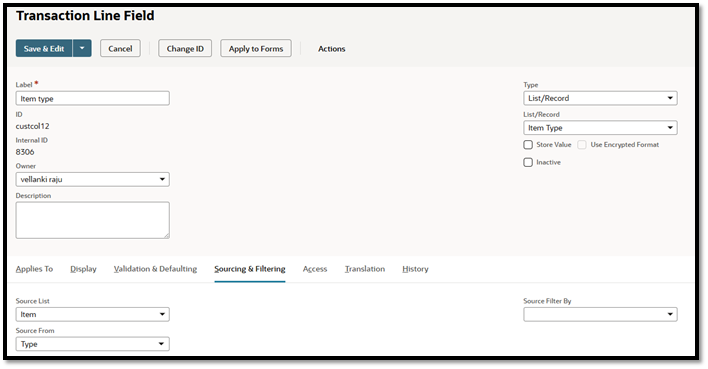
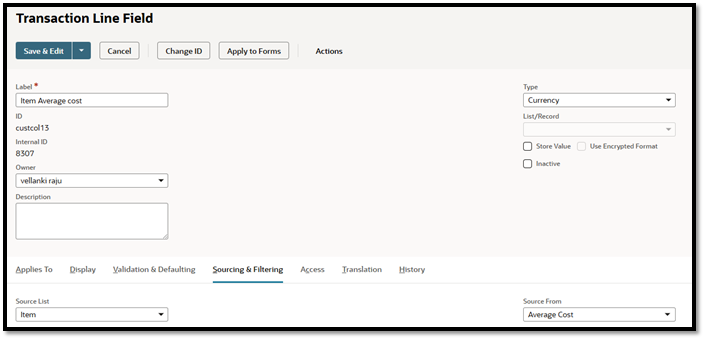
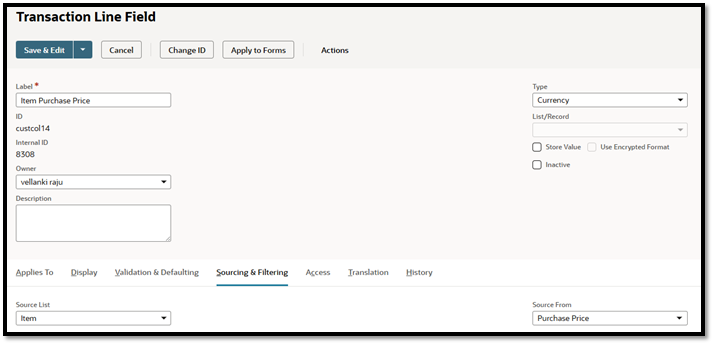
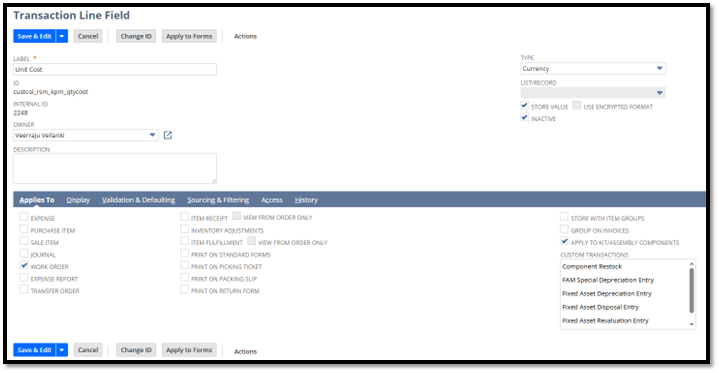
Create below 2 custom fields to capture the unit cost of each item per quantity (Average cost/purchase price):
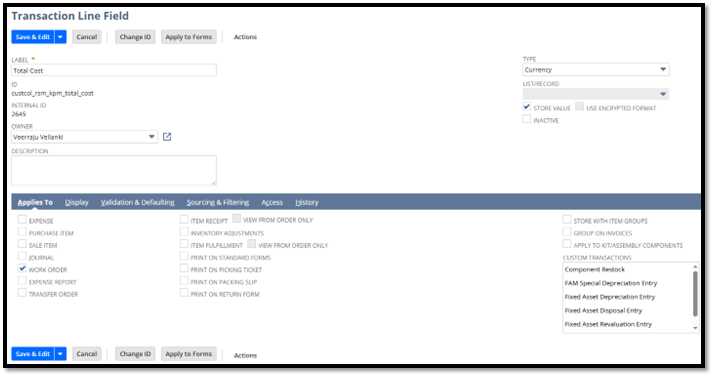
Capture Total cost (BOM quantity X Average cost/purchase price):
Step 2: Create a Workflow to Populate Unit & Total Cost
Go to Customization > Workflows > New.
Enter a name
Record Type: Transaction
Subtype: Work Order
Within the workflow:
Create a new sublist group in State 1.
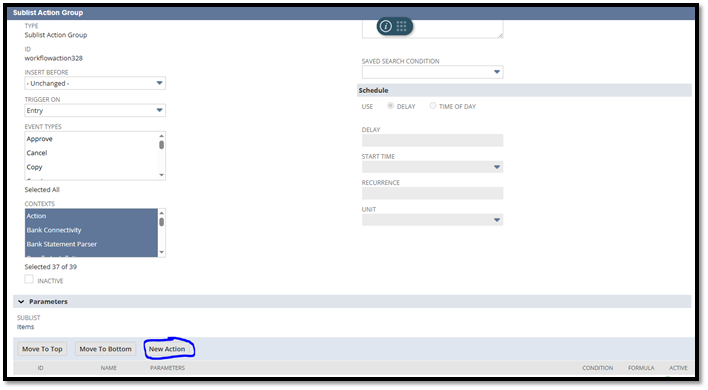
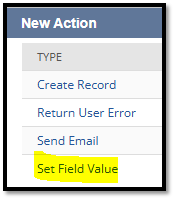
2. Add a New Action → Set Field Value.
3. Select Unit Cost, enter this formula in the formula field:
WHEN {line.custcol_rsm_kpm_item_type} IN ('Inventory Item', 'Assembly')
THEN CASE
WHEN {line.custcol_rsm_kpm_cost} IS NOT NULL AND {line.custcol_rsm_kpm_cost} <> 0
THEN {line.custcol_rsm_kpm_cost}
ELSE {line.custcol_rsm_kpm_purchase_price}
END
ELSE {line.custcol_rsm_kpm_purchase_price}
END
Select the Total Cost field, enter this formula in the formula field:
WHEN {line.custcol_rsm_kpm_item_type} IN ('Inventory Item', 'Assembly')
THEN CASE
WHEN {line.custcol_rsm_kpm_cost} IS NOT NULL AND {line.custcol_rsm_kpm_cost} <> 0
THEN {line.custcol_rsm_kpm_cost} * {line.quantity}
ELSE {line.custcol_rsm_kpm_purchase_price} * {line.quantity}
END
ELSE {line.custcol_rsm_kpm_purchase_price} * {line.quantity}
END
Step 3: Create a Transaction Saved Search
Next, create a transaction saved search to capture the total component cost on the Work Order.
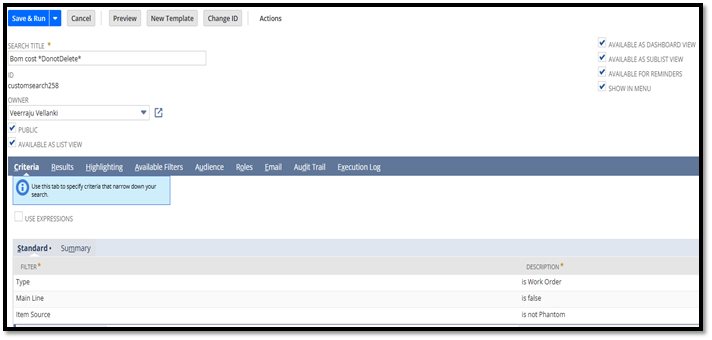
In the Results tab, use this formula:
WHEN {custcol_rsm_kpm_item_type} IN ('Inventory Item', 'Assembly')
THEN CASE
WHEN {custcol_rsm_kpm_cost} IS NOT NULL AND {custcol_rsm_kpm_cost} <> 0
THEN {custcol_rsm_kpm_cost} * {quantity}
ELSE {custcol_rsm_kpm_purchase_price} * {quantity}
END
ELSE {custcol_rsm_kpm_purchase_price} * {quantity}
END
Don’t forget to apply the required filters shown below to ensure accuracy.
Step 4: Create a Transaction Body Field
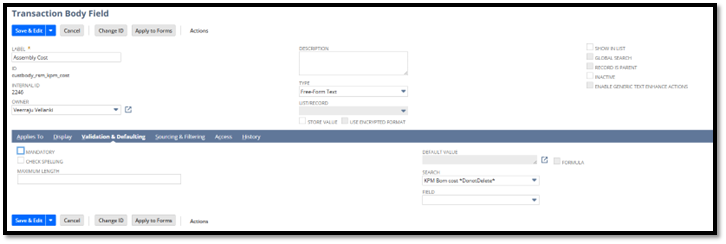
Now, create a Transaction (Work Order) Body field and link it to the saved search created in Step 3. This field will display the sum of component costs on the Work Order.
See the result below from our solution:
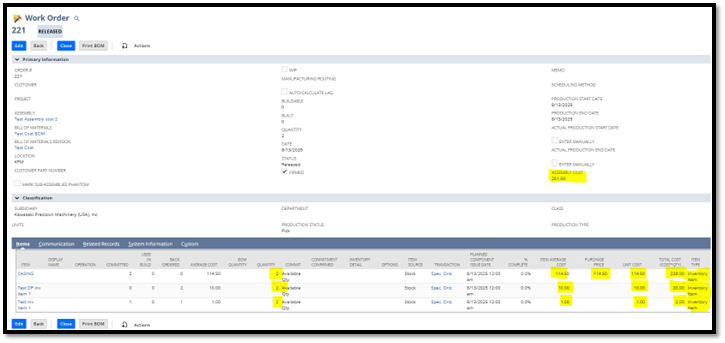
Remember: values appear only when the Work Order is released
Once complete, print the BOM and verify the cost results.
Step 5: Review and Test
Run through the following test scenarios:
Components with only Average Cost
Components with only Purchase Price
A mix of item types
When the Work Order is released, costs populate automatically. Print the Work Order or BOM to confirm accuracy.
Benefits of This Solution
Early Cost Visibility – Review costs before production starts
Better Planning – Decide if builds are worth proceeding
Improved Accuracy – Reduce surprises in post-build costing
Consistency – Reuse the same formula logic across workflows, saved searches, and PDFs
Single Source of Truth – Align costs across Work Orders, BOM prints, and reports
Final Tips
Maintain Average Cost or Purchase Price for all component items.
Keep formulas consistent across saved searches, workflows, and Advanced PDF templates.
Release Work Orders to ensure costs populate correctly.
Conclusion
NetSuite does a great job showing costs on Assembly Builds, but Work Orders require customization to provide the same visibility. By adding a simple formula that pulls Average Cost or Purchase Price, you can make Work Orders and BOM prints significantly more valuable for your production team.