Managing employee expense reports manually can create unnecessary administrative work, increase the risk of data entry errors, and delay financial reporting. As organizations grow, handling expense submissions across multiple departments, subsidiaries, currencies, and approval workflows becomes increasingly complex.
NetSuite simplifies expense management by providing centralized expense reporting capabilities and powerful CSV import functionality. By importing expense reports directly into NetSuite, organizations can improve accuracy, reduce manual effort, accelerate approvals, and maintain a complete audit trail for all employee expenses.
In this guide, we'll walk through how to enable expense reports in NetSuite and import expense data efficiently using the CSV Import Assistant.
Why Import Expense Reports into NetSuite?
Importing expense reports offers several advantages for finance and accounting teams:
- Eliminate manual data entry
- Reduce processing errors
- Accelerate expense reimbursement cycles
- Improve financial visibility
- Support multi-entity and multi-currency operations
- Maintain accurate audit trails
- Streamline approval workflows
- Increase scalability as transaction volumes grow
For organizations processing large numbers of employee expenses, CSV imports provide a faster and more efficient alternative to manual expense entry.
Enabling Expense Reports in NetSuite
Before importing expense data, the Expense Reports feature must be enabled within your NetSuite account.
To enable expense reports:
- Navigate to Setup → Company → Enable Features
- Select the Employee subtab
- Check the Expense Reports box
- Save your changes
Once enabled, employees and administrators can create, import, submit, and approve expense reports directly within NetSuite.
Importing Expense Reports Using CSV
NetSuite's CSV Import Assistant allows organizations to upload expense reports in bulk, eliminating the need to manually create individual expense records.
To begin the import process:
- Navigate to Setup → Import/Export → Import CSV Records
- Select the appropriate record type for Expense Reports
- Upload your prepared CSV file
- Map CSV fields to corresponding NetSuite fields
- Validate the import configuration
- Run the import and review the results
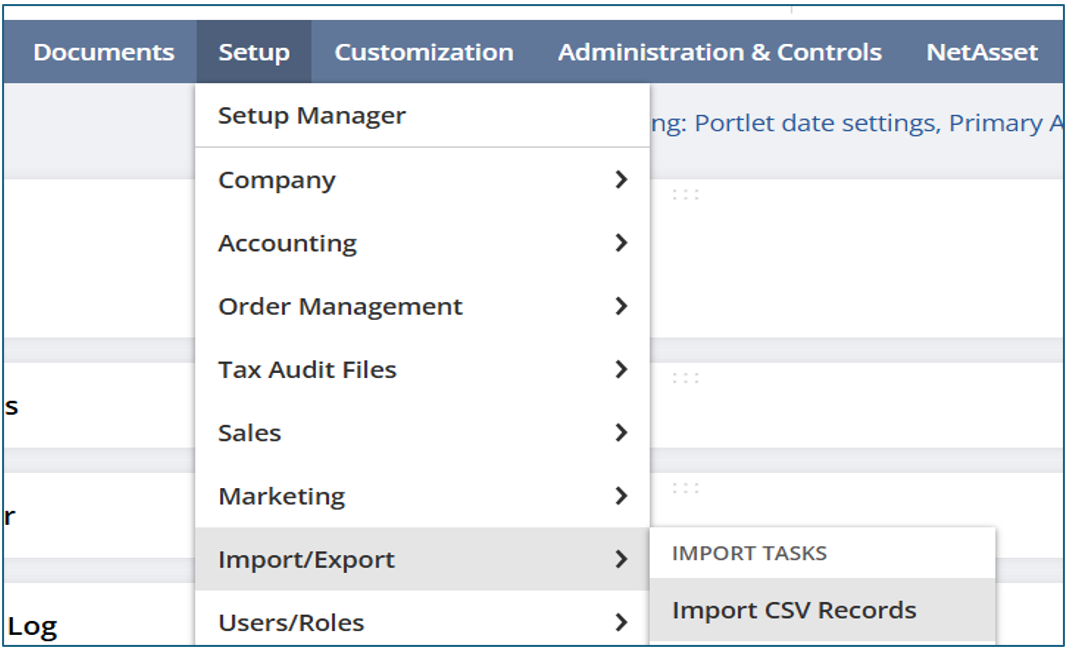
The CSV Import Assistant supports both single-line and multi-line expense reports, providing flexibility for organizations with varying reporting requirements.
Importing a Single Expense Line
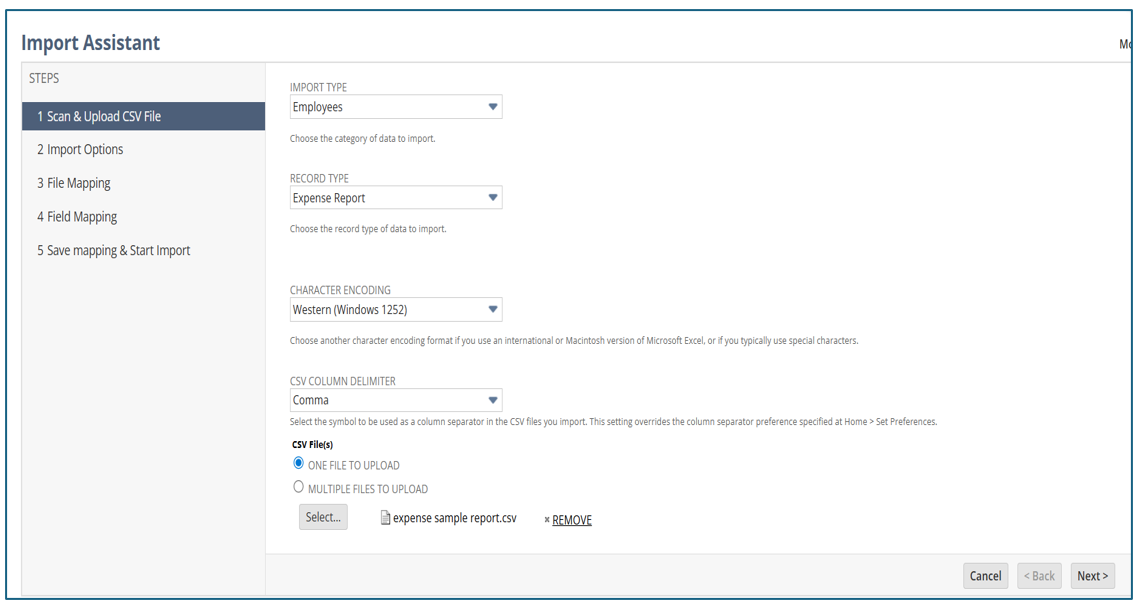
Step 1: Upload the CSV File
Import Type: Employees
Record Type: Expense Report
Select the CSV file to upload.
Click Next.
Step 2: Prepare the Expense File
Example file for uploading a single expense line per report:

Step 3: Configure Import Options
On the Import Options page:
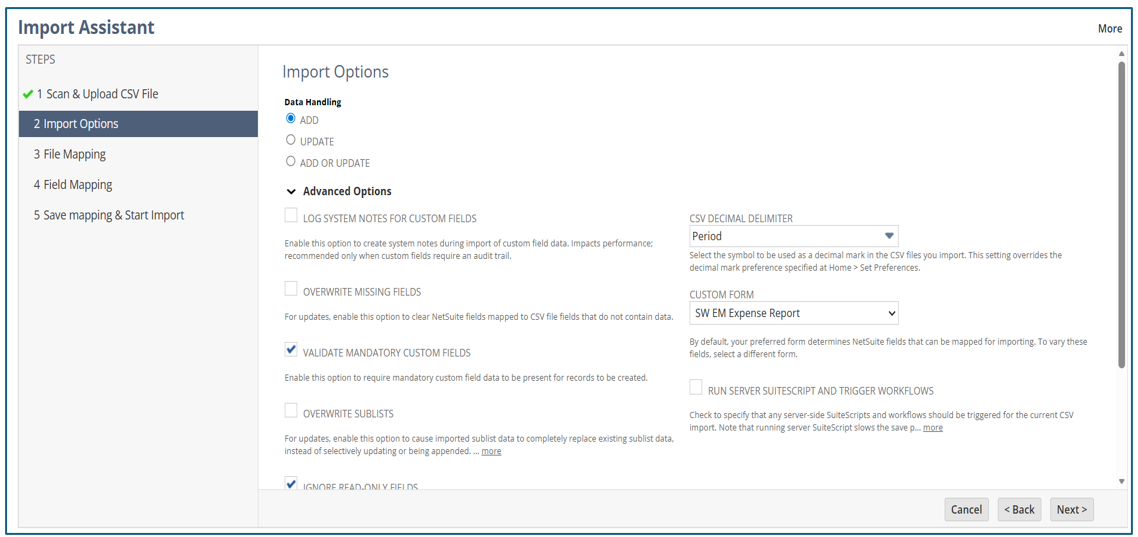
Select the appropriate fields under the Advanced Option:
- Add: creates a new record if it doesn’t already exist.
- Update: an existing record if it matches based on a unique identifier (like internal ID, external ID, or name).
- Add or Update performs both actions as needed.
Confirm the correct custom form. By default, your preferred form determines NetSuite fields that can be mapped for importing.
Run Server Suite Script and trigger Workflows. Check to specify that any server-side Suite Scripts and workflows should be triggered for the current CSV import. Note that running the server Suite Script slows down the save process.
Click Next to continue.
Step 4: Map Fields
The Field Mapping page opens, where you map the expense report to upload file columns to the NetSuite fields on the right.
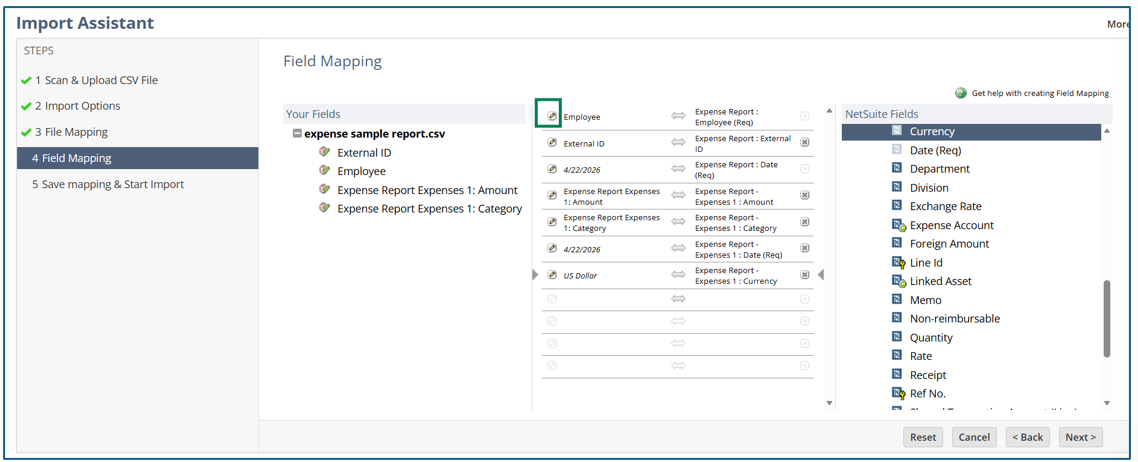
Use the pencil icon to map employees using an Internal ID when required.
Save the mapping for future imports. Save the import by entering a name for it.
Click on the Next button to proceed.
Step 5: Run the Import
Click Save and Run.
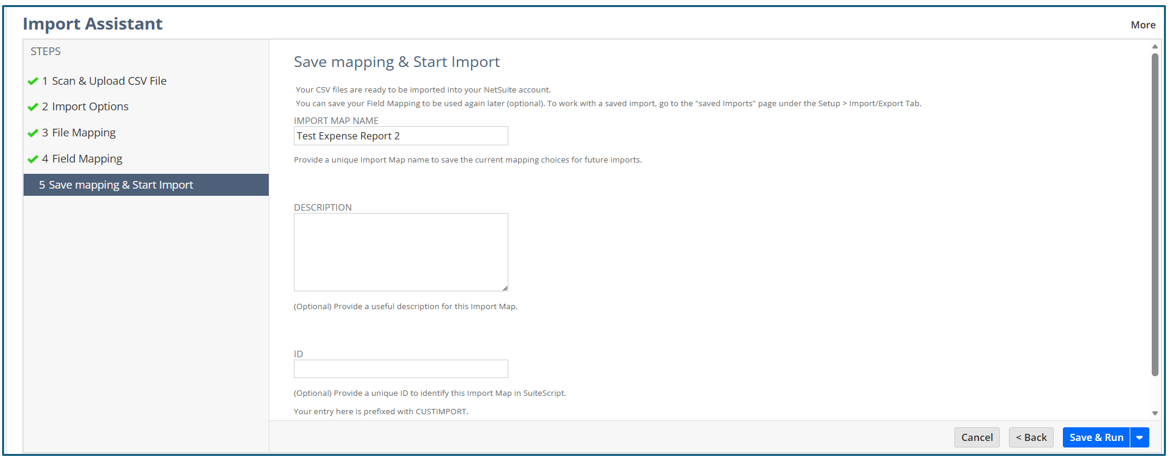
Step 6: Monitor the Import Job Status until it shows Completed
Click on the Import Job Status link and then click the Refresh button until the status shows Completed.
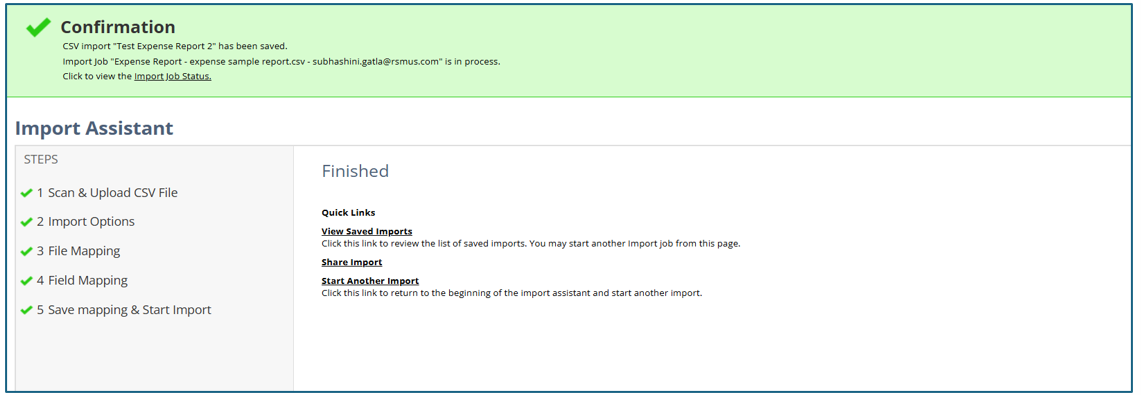
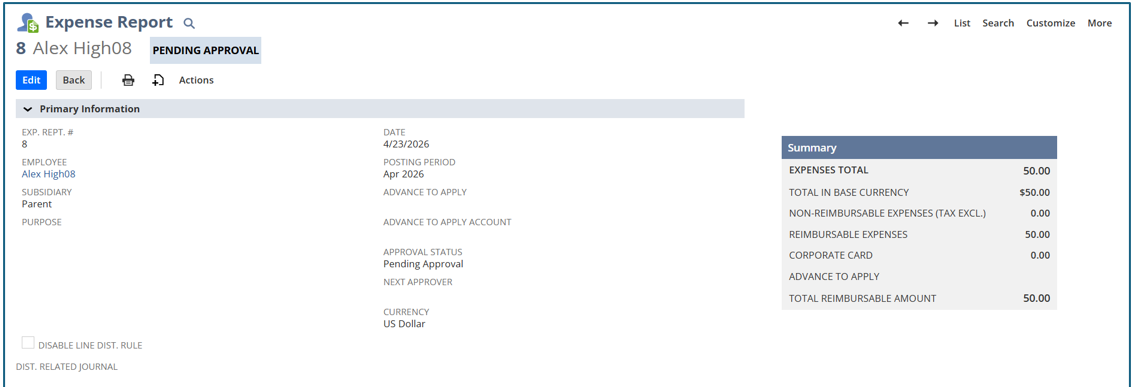
Step 7: Review Imported Expense Reports
Navigate to Transactions → Employees → Enter Expense Reports → List.
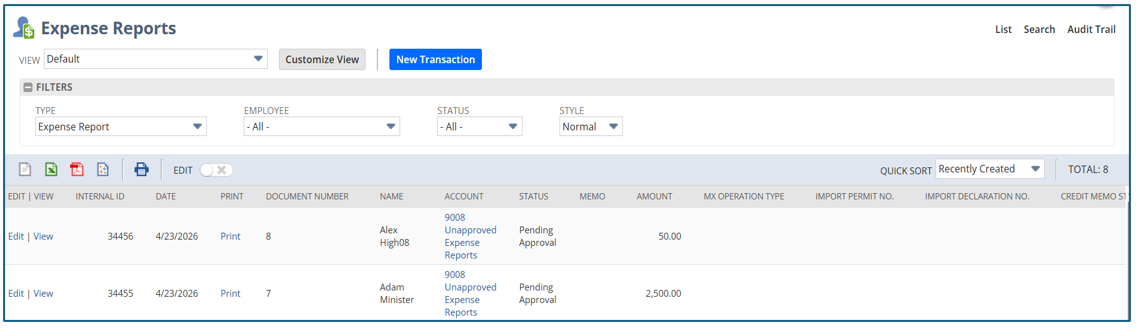
Click View to review the imported expense report.

Adding Multiple Lines in Employee Expense Reports
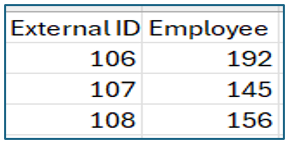
When expense reports include multiple line items, NetSuite requires two CSV files:
- Header file: expense report body fields.
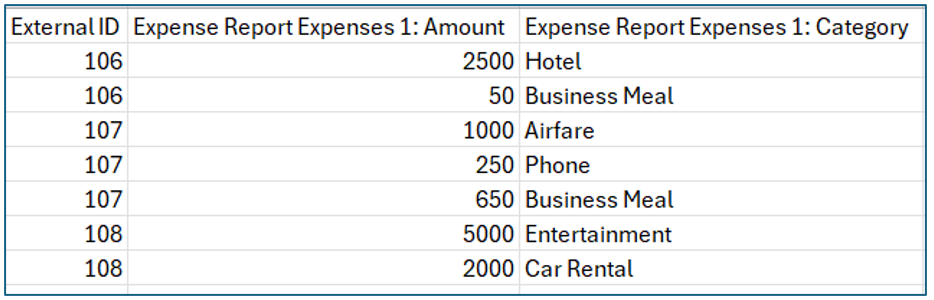
- Line file: expense sublist details.
Multi-file CSV Example
Below is the file for the header data:
Each row in the second file must include values for the Category field and, typically, for the Amount field. (If the body data for the record has Use Multiple Currencies set to No, which is the default, then Amount is required.
Each sublist record must also include a unique identifier that links the sublist record to an entry in the main file.
This example uses the External ID field for this purpose.
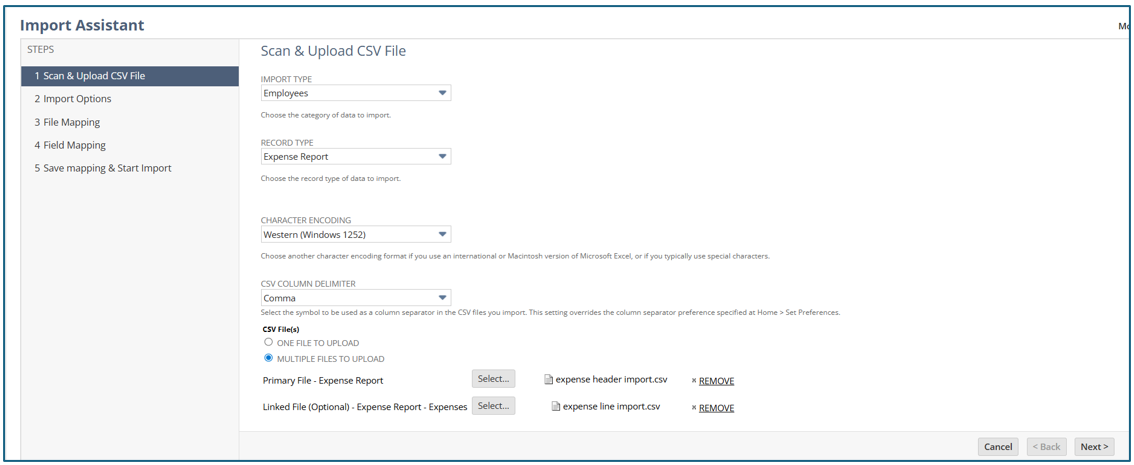
With multiple-file import, you use one file for the expense report of body fields and another file for the Expenses sublist fields.
Navigate to Setup → Import/Export → Import CSV Records.
Import Type: Select Employees.
Record Type: Select Expense Report.
Select Multiple Files to Upload in the CSV File(s).
- Primary File – Expense Report: Select the first CSV file (Expense Header).
- Linked File (Optional) – Expense Report Expenses: Select the second CSV file (Expenses Line).
Click Next →Data Handling: Select Add → Click Next
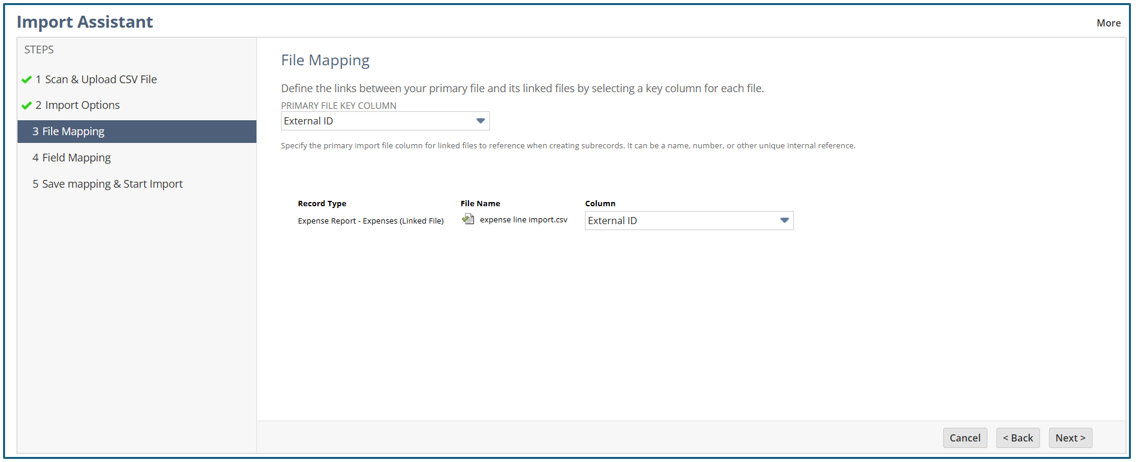
Next, on the File Mapping page:
Select External ID in the Primary File Key Column.
Map all the fields.
- Map the External ID (Expenses Line) to the Line ID field.
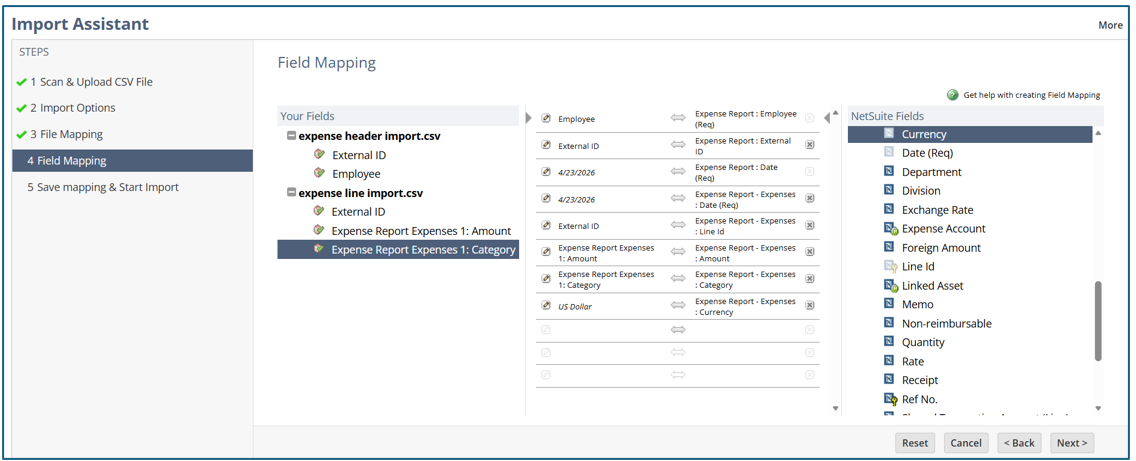
Click Next, then save the import by providing a name.
Click Save and Run.
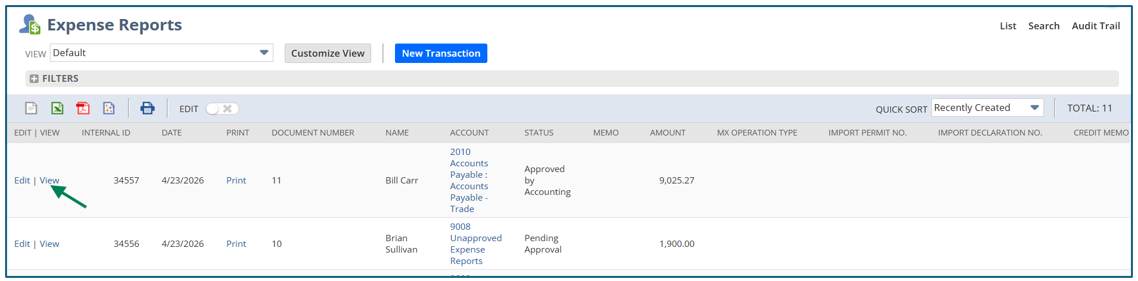
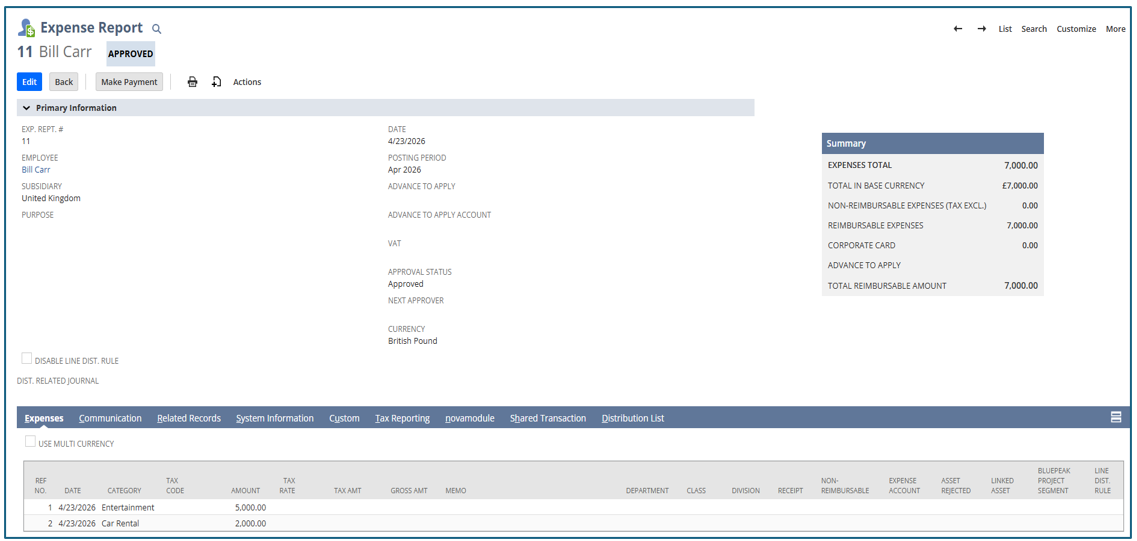
Users can check the uploaded expense report with multiple lines by going to Transactions → Employees → Enter Expense Reports → List.
Click on the View link to open the expense report.
Importing Multi-Currency Expense Reports
For organizations operating in multiple currencies, NetSuite supports importing expense reports with currency-specific line items.
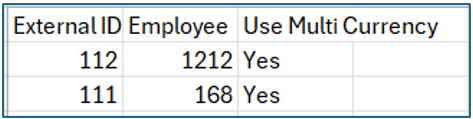
- The header file must indicate that multi-currency is enabled.
- The linked expense file must include a Currency column for each line.
Example file for the header:
Example of the linked file for the Expenses sublist:

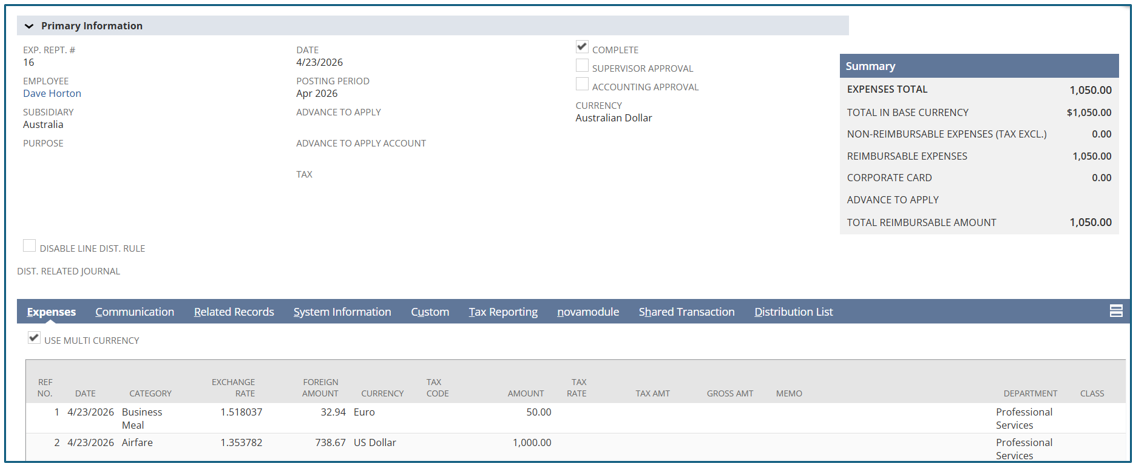
Example of expense lines with multiple currencies:
Approving Expense Reports in NetSuite
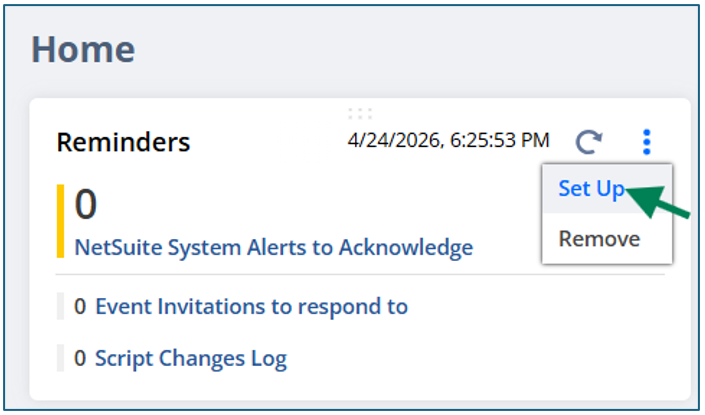
NetSuite provides built-in approval visibility through the Reminders portlet.
Add Expense Reports to Approve to your reminders by clicking on the setup.
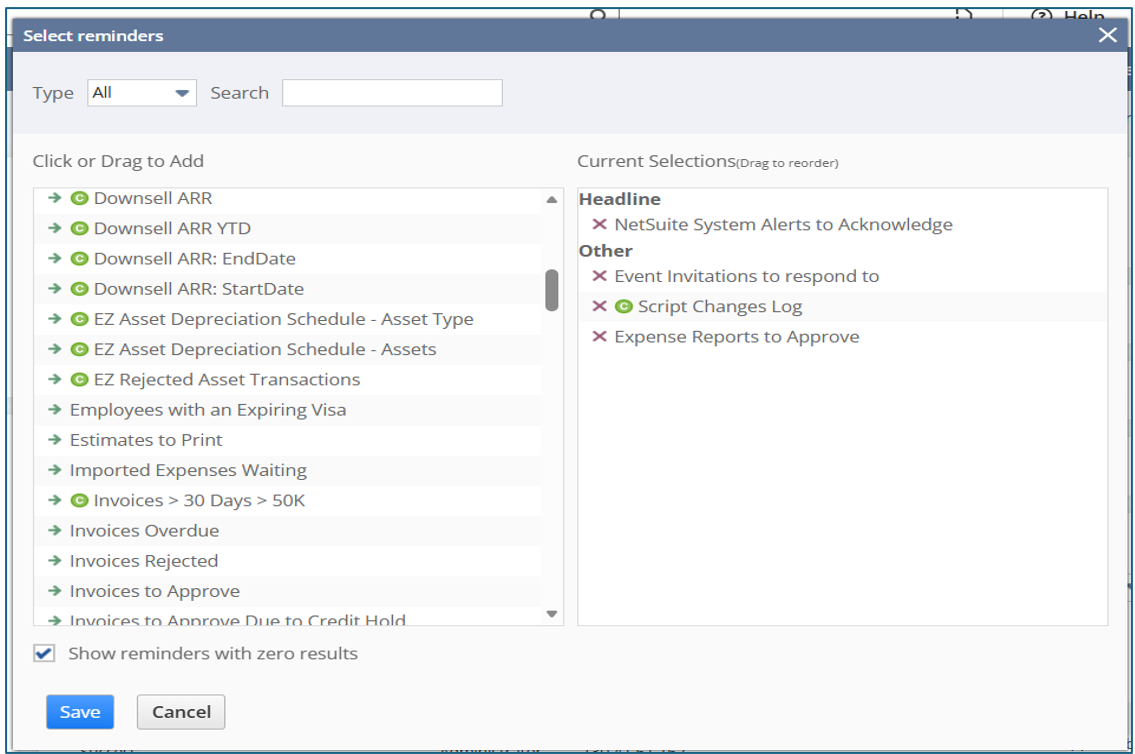
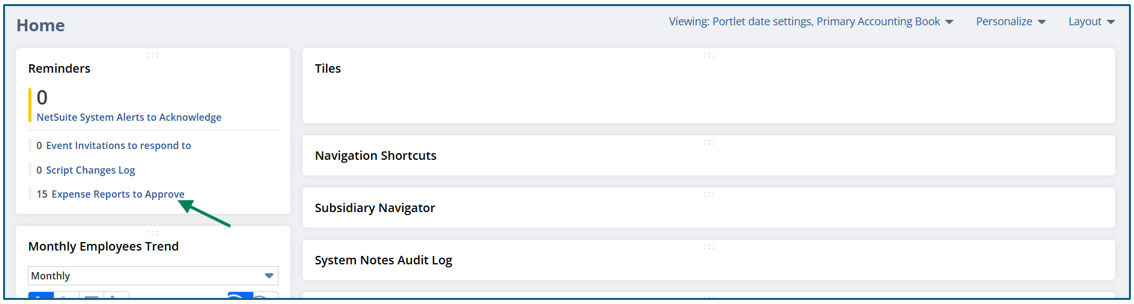
Click on the Expense Reports to Approve. It will redirect to the Approve Expense Reports.
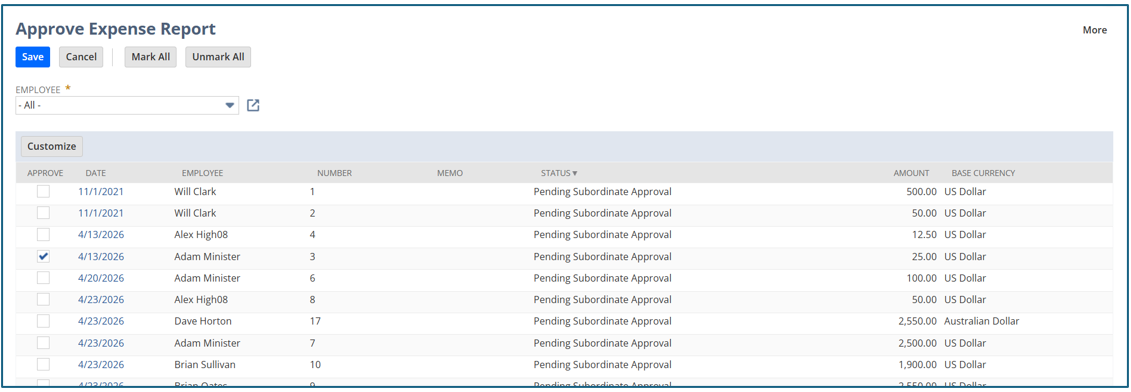
Click Save. The expense report has been approved.
Common Error Messages
During the import process, you may encounter one of the following errors:
Please enter value(s) for: Amount
This error typically occurs when the Amount field is missing from one or more expense lines. Verify that every expense entry includes a valid amount before importing the file.
You must enter at least one line item for this transaction
This error indicates that an expense report was created without any associated expense line details. Each expense report must contain at least one expense line item.
Invalid posting period reference key for subsidiary 1
This error usually points to an incorrect or unavailable posting period value. Confirm that the posting period entered in the CSV file matches an active posting period within NetSuite for the selected subsidiary.
Conclusion
Importing expense reports into NetSuite enables organizations to reduce manual data entry, enhance reporting accuracy, and expedite month-end financial processes. For businesses managing high transaction volumes, multiple subsidiaries, or complex approval structures, CSV imports provide a scalable and efficient approach to expense management.
At Versich, we help organizations optimize NetSuite financial processes through automation, workflow design, and system enhancements. From expense reporting and approvals to comprehensive financial management solutions, our consultants collaborate closely with finance teams to enhance visibility, strengthen internal controls, and boost operational efficiency.
If you're looking to streamline expense management or maximize the value of your NetSuite investment, Versich can help design a solution tailored to your business requirements