Containerizing your application is only half the story; the real power comes when your Docker images are built automatically on every commit. GitLab CI makes this easy by letting you define a pipeline that builds and optionally pushes images to a container registry using just a .gitlab-ci.yml file. This guide walks through a simple, production‑style pattern for building Docker images in GitLab CI.
Prerequisites
Before creating the pipeline, make sure you have:
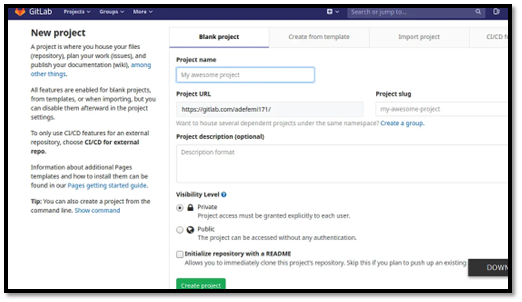
A GitLab project with your application and a Dockerfile at the root (or defined path).
GitLab Container Registry is enabled for the project, or another registry you can push to.
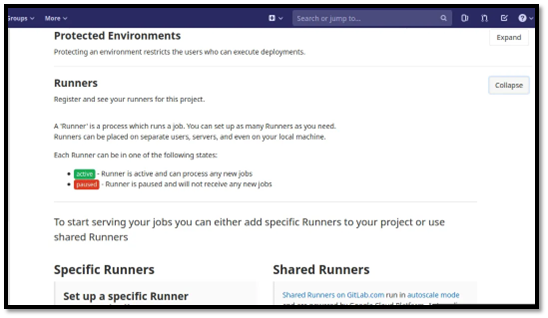
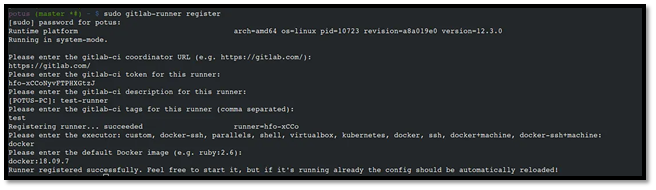
A GitLab Runner capable of running Docker‐in‐Docker (dind) or a Docker‑enabled executor.
You can check if Container Registry is enabled under Settings → Packages and registries → Container registry in your GitLab project.

Option 1: Build Docker Images with Docker‑in‑Docker
The most common approach is to use Docker‑in‑Docker (dind): GitLab spins up a service container running the Docker daemon, and your job connects to it to run docker build commands. This pattern is well‑supported in GitLab Docs and works well for many teams.
A minimal .gitlab-ci.yml.yml using DIND looks like this:
services:
- name: docker:25.0-dind
command: ["--tls=false"]
variables:
DOCKER_TLS_CERTDIR: ""
DOCKER_DRIVER: overlay2
DOCKER_IMAGE: "$CI_REGISTRY_IMAGE:$CI_COMMIT_SHORT_SHA"
stages:
- build
- push
before_script:
- docker login -u "$CI_REGISTRY_USER" -p "$CI_REGISTRY_PASSWORD" "$CI_REGISTRY"
build-image:
stage: build
script:
- docker build -t "$DOCKER_IMAGE" .
- docker images
push-image:
stage: push
script:
- docker push "$DOCKER_IMAGE"
only:
- main
What this configuration does
Uses the official Docker image for the job, and starts Docker:dind as a service so Docker commands work inside the CI job container.
Disables TLS for dind (DOCKER_TLS_CERTDIR: "" and --tls=false) to simplify configuration for basic setups.
Logs into the GitLab Container Registry using predefined CI variables (CI_REGISTRY_USER, CI_REGISTRY_PASSWORD, CI_REGISTRY).
Builds an image tagged with the project image plus the short commit SHA, then pushes it on the main branch.
This gives you a reproducible, traceable image per commit, ideal for staging or deployments.
Option 2: Build and Push with Kaniko or Similar Tools
Docker‑in‑Docker works well, but some teams prefer rootless build tools like Kaniko or Podman to avoid running a Docker daemon in CI. These tools build images directly from the Dockerfile and push to a registry without requiring privileged Docker access.
A Kaniko‑style job in .gitlab-ci.yml could look like:
- build
build-kaniko:
stage: build
image:
name: gcr.io/kaniko-project/executor:latest
entrypoint: [""]
variables:
DOCKER_CONFIG: /kaniko/.docker/
DESTINATION_IMAGE: "$CI_REGISTRY_IMAGE:$CI_COMMIT_SHORT_SHA"
script:
- mkdir -p /kaniko/.docker
- echo "{\"auths\":{\"$CI_REGISTRY\":{\"username\":\"$CI_REGISTRY_USER\",\"password\":\"$CI_REGISTRY_PASSWORD\"}}}" > /kaniko/.docker/config.json
- /kaniko/executor
--context "$CI_PROJECT_DIR"
--dockerfile "$CI_PROJECT_DIR/Dockerfile"
--destination "$DESTINATION_IMAGE"
Here, the Kaniko executor reads the Dockerfile, builds the image, and pushes it directly to the GitLab Container Registry using CI credentials. This can be attractive if your runners don’t support privileged mode or you want a more locked‑down security model.
Structuring a Real‑World Pipeline
In a real project, you rarely only build; you usually want separate stages for build, test, and deploy. A practical pattern is:
Build and push an image tagged with the commit SHA.
Run tests against a container started from that image.
Deploy from a known, tested tag (e.g., : main or a release tag).
For example (using Docker‑in‑Docker):
services:
- name: docker:25.0-dind
command: ["--tls=false"]
variables:
DOCKER_TLS_CERTDIR: ""
DOCKER_DRIVER: overlay2
IMAGE_TAG: "$CI_REGISTRY_IMAGE:$CI_COMMIT_SHORT_SHA"
stages:
- build
- test
- push
before_script:
- docker login -u "$CI_REGISTRY_USER" -p "$CI_REGISTRY_PASSWORD" "$CI_REGISTRY"
build-image:
stage: build
script:
- docker build -t "$IMAGE_TAG" .
artifacts:
reports:
dotenv: build.env
after_script:
- echo "IMAGE_TAG=$IMAGE_TAG" >> build.env
test-image:
stage: test
script:
- docker run --rm "$IMAGE_TAG" sh -c "echo 'Run your app tests here'"
needs:
- job: build-image
artifacts: true
push-image:
stage: push
script:
- docker push "$IMAGE_TAG"
only:
- main
needs:
- job: build-image
artifacts: true
This structure ensures the same image that passed tests is the one pushed to the registry, matching best practices described in GitLab and Docker documentation.
Best Practices for Building Images in GitLab CI
When designing your pipeline, keep these recommendations in mind:
Use the project’s Container Registry wherever possible for simplicity; GitLab automatically provides URL and credentials as CI variables.
Pin Docker and dind versions to avoid breaking changes from upstream updates (docker:25.0, docker:25.0-dind).
Keep Dockerfiles efficient: leverage layer caching, avoid unnecessary layers, and clean up temp files to reduce build times and image size.
Separate build and test stages so you can reuse the image across jobs and track failures clearly.
Use tags on runners (e.g., dind, docker) so only runners with proper Docker support pick up image‑build jobs.
These choices make your pipelines faster, safer, and easier to maintain over time.
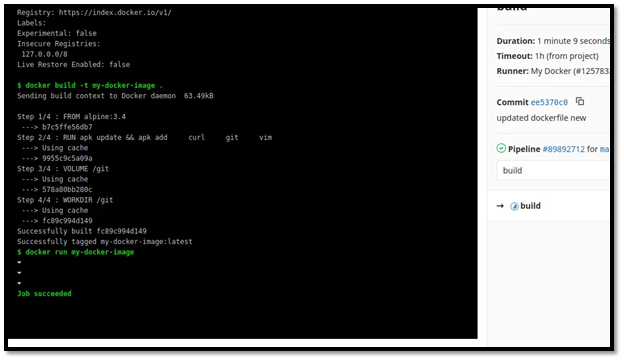
When to Choose Which Approach
Use Docker‑in‑Docker if your runners can run privileged containers and you want a straightforward, official pattern aligned with GitLab docs.
Use Kaniko or similar tools if security policies restrict Docker daemons in CI or you run in Kubernetes‑backed environments where rootless builds are preferred.
Both approaches can reliably build and push images; the decision often comes down to security constraints and runner capabilities.
Summary
Building Docker images in GitLab CI comes down to three essentials:
Pick a build mechanism (Docker‑in‑Docker or a rootless builder).
Define a .gitlab-ci.yml that builds, tags, and pushes images to a registry.
Integrate this into a multi‑stage pipeline that tests and eventually deploys from the same image artefact.
Once this is in place, every commit produces a fresh Docker image you can confidently ship, making your delivery process more consistent and automated.